Conversion Tracking with Google Analytics: A 2026 Guide
Master conversion tracking with Google Analytics. This end-to-end guide covers GA4 setup, GTM, ecommerce, and how to track A/B test revenue.
You're probably looking at a dashboard that says plenty is happening on your site. Sessions are up. Users are arriving from paid search, email, organic, maybe a few partner referrals. Someone in the team is pleased with traffic growth. Someone else is asking the harder question: which of these visits became leads, sales, or revenue?
That's where most tracking setups start to wobble. They collect activity, but they don't measure outcomes cleanly enough to support budget decisions, CRO work, or experiment analysis. A campaign can look healthy right up until you ask what it produced. An A/B test can show more clicks while generating less value.
Good conversion tracking with Google Analytics fixes that. It turns scattered interactions into a business measurement system. It also forces useful discipline. You decide what counts, how it's triggered, how it's valued, and how that data flows into reporting.
If you want a broader refresher on how optimisation work connects to sales impact, Cleffex Digital's CRO guide is a useful companion read. And before you instrument anything, it helps to align on how KPIs are measured, because weak KPI definitions are usually what makes “working” tracking fail the business test.
Why Your Data Needs a Purpose
A team can spend months collecting analytics and still not know whether the homepage hero, lead form, or paid landing page is doing its job. I see this most often when reporting is built around visibility metrics first and commercial outcomes second. The dashboard looks busy. The business still can't answer where revenue is coming from.
The fix isn't “more data”. It's purposeful data.
Start with the decision you need to make
When a marketing lead asks for conversion tracking, the actual request is usually one of these:
- Budget allocation: Which channels deserve more spend because they drive valuable actions?
- Page optimisation: Which page elements move people towards enquiry or purchase?
- Experiment measurement: Which test variant generated better business results, not just more interaction?
- Forecasting: Which actions are strong enough leading indicators of future revenue?
If you don't define that decision first, the tracking plan becomes a grab bag of button clicks and page views.
Practical rule: Track actions because they answer a business question, not because the platform makes them easy to record.
Vanity signals are cheap to collect
A click on a CTA can matter. It can also be noise. The same goes for scroll depth, video starts, accordion opens, and internal search usage. These are often useful supporting signals, but they're not automatically conversions.
A solid setup separates interest, intent, and outcome. For a lead-gen site, that might mean distinguishing a pricing page visit from a form start and then from a successful lead submission. For ecommerce, it means treating product engagement differently from an actual purchase.
This is also why experiment analysis often breaks down. Teams run a test, measure the nearest click, and declare a winner. Then sales quality drops, average order value shifts, or downstream conversion weakens. The test “won” in the report and lost in the business.
Purpose changes what you build
Once the team agrees what matters, implementation gets clearer. You stop asking “what can GA4 track?” and start asking “what event proves value?” That one shift usually improves naming, reporting, and QA.
For conversion tracking with Google Analytics, purpose sits above the tool. GA4 is just the measurement layer. The quality of insight depends on whether your setup maps user behaviour to actual outcomes the business cares about.
Understanding GA4 Events and Key Events
Google Analytics 4 is built on events. That's the mental model to get right first. In Universal Analytics, many teams thought in sessions, page categories, and goals. In GA4, the unit of measurement is the interaction itself.
Think in building blocks
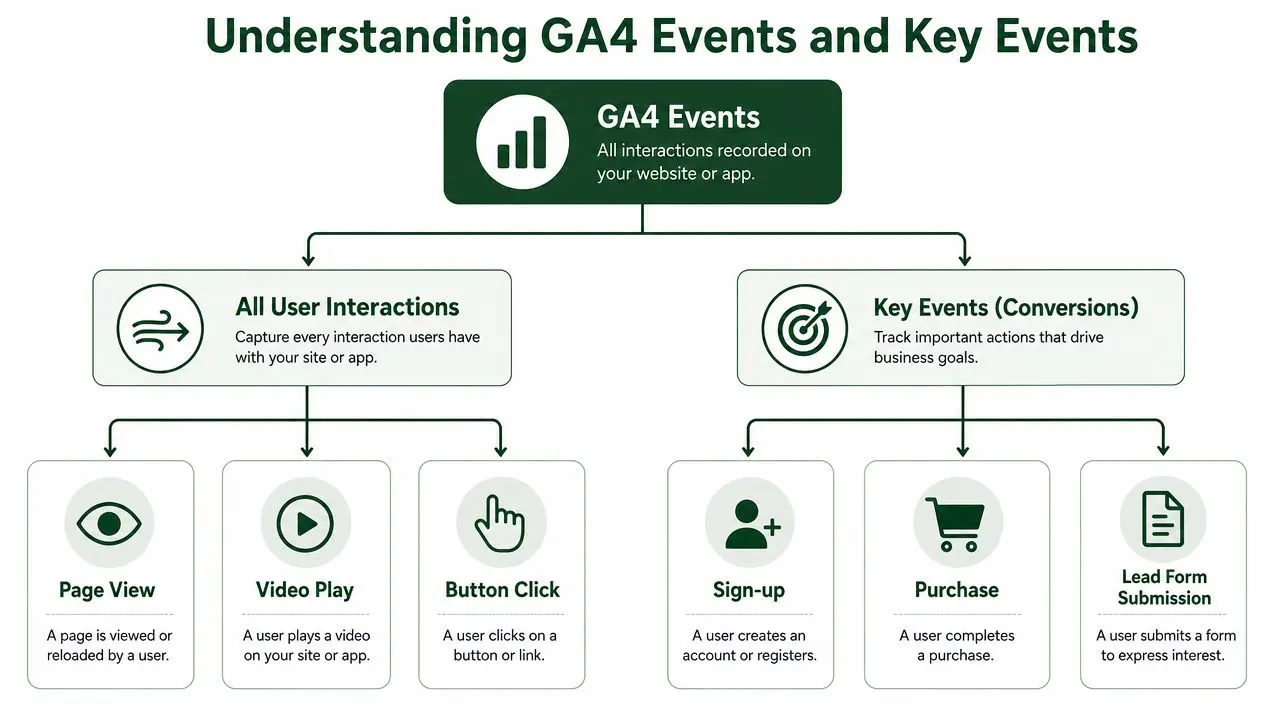
An event is the base unit. A page view is an event. A video play is an event. A button click can be an event. A purchase is an event.
Then come parameters. These add context. A CTA click event might carry the button text, page path, link destination, or experiment variant. A purchase event might carry transaction details and item information.
Then come key events. With key events, business intent enters the setup. In GA4, not every event matters equally. Some events are operational noise. Some are diagnostics. Some represent value. A key event is an event you've marked as important enough to use in conversion reporting.
Google's own documentation says that in GA4 a conversion is now treated as an important action used to measure ad performance, and conversions are created from Analytics events for more consistent counts across Google Analytics and Google Ads. The same documentation also defines session key event rate as the percentage of sessions in which any key event was triggered, and this became more visible in standard reporting. Google's documentation is here: GA4 key event rate and conversion definitions.
The practical difference between events and key events
This distinction matters because teams often over-promote events into conversions. If everything gets marked as important, nothing is important. A newsletter form start, for example, may be useful for funnel diagnosis without being the result you optimise paid media toward.
A clean way to think about it is:
- General events tell you what users did
- Key events tell you what outcomes mattered
- Parameters tell you the conditions around those outcomes
Mark fewer things as key events than you think you need. You can always analyse supporting events later. Cleaning up an inflated conversion model is harder.
Where marketers usually get confused
The most common confusion is around the naming change. GA4 reframed conversion tracking around key events, but your business question hasn't changed. You still need to identify important actions and measure how often they happen.
The second confusion is rate calculation. Teams often say “conversion rate” as if there's only one version. In practice, GA4 separates session-based and user-based views. That's useful, because a test that affects repeat interactions may tell a different story depending on which lens you use.
For day-to-day analysis, what matters is consistency. Define the event. Decide whether it should be a key event. Attach the right context. Then read it the same way across channel reporting, landing page analysis, and experiment reviews.
Configuring Key Events in the GA4 Interface
For a basic setup, the GA4 interface is enough. You don't need to open a codebase just to promote an existing event into business reporting. The reliable workflow is simple: create or reuse the event, then explicitly mark it as a key event. For many UK teams, that two-step process is the cleanest starting point, especially before introducing more granular tracking through Tag Manager. Neil Patel's walkthrough of this pattern is here: tracking conversions with GA4.
The fastest clean setup
If the event already exists in your property, use the interface first.
- Go to Admin
- Open Data display
- Select Events
- Find the event you want to use
- Mark it as a Key event
That's the direct route when you already have something like generate_lead, sign_up, or purchase arriving correctly.
If the event doesn't exist yet, you have two choices. You can create a derived event in the GA4 interface from an existing one, or you can send a dedicated event from Google Tag Manager. For simple conditions, the interface can work. For precise interaction logic, GTM is usually better.
Naming matters earlier than people expect
Most reporting friction starts with poor event names. If one team member names an event ctaClick, another uses button_press, and a third uses lead_form_submit_v2, your property becomes hard to trust quickly.
A simple convention keeps things readable.
| Event Name | Object | Action | Description |
|---|---|---|---|
lead_form_submit |
lead_form | submit | Successful lead form submission |
demo_cta_click |
demo_cta | click | Click on a demo request button |
newsletter_signup |
newsletter | signup | Completed newsletter registration |
pricing_page_view |
pricing_page | view | View of the pricing page |
purchase |
purchase | complete | Completed ecommerce transaction |
This isn't about aesthetics. It's about making analysis possible six months later when someone asks whether paid social drove more demo_cta_click events on the new landing page than organic did on the old one.
When to create a new event in the interface
The UI method is useful when the underlying event is broad and the business event is narrow. A common example is a thank-you page. You might already collect page_view, but you only want visits to a specific thank-you URL to count as a lead.
In that case:
-
Use an existing source event: such as
page_view - Add conditions: such as a page path or page location rule
- Name the derived event clearly: so no one confuses it with all page views
- Then mark it as a key event: only after confirming it fires correctly
Working standard: If the conversion logic depends on a URL rule alone, GA4 UI creation can be fine. If it depends on click text, element state, form behaviour, or JavaScript conditions, move to GTM.
Keep the reporting layer tidy
The interface makes it easy to mark events as important, but ease can create clutter. Don't mark micro-actions as key events just because someone wants to “see them in the main report”. That creates noisy acquisition tables and confuses stakeholders about what a conversion means.
For conversion tracking with Google Analytics, the interface should reflect the business hierarchy:
- A few macro outcomes that represent value
- Selected micro conversions only when they support optimisation work
- Supporting event detail left as standard events unless there's a clear reporting need
That structure keeps acquisition analysis useful and prevents your A/B testing work from being judged on the wrong action.
Advanced Tracking with Google Tag Manager
The GA4 interface is fine for straightforward cases. It isn't enough when you need precision. The moment a key action depends on a click, a form state, a component interaction, or a specific on-page element that doesn't create a unique page load, Google Tag Manager becomes the practical tool.
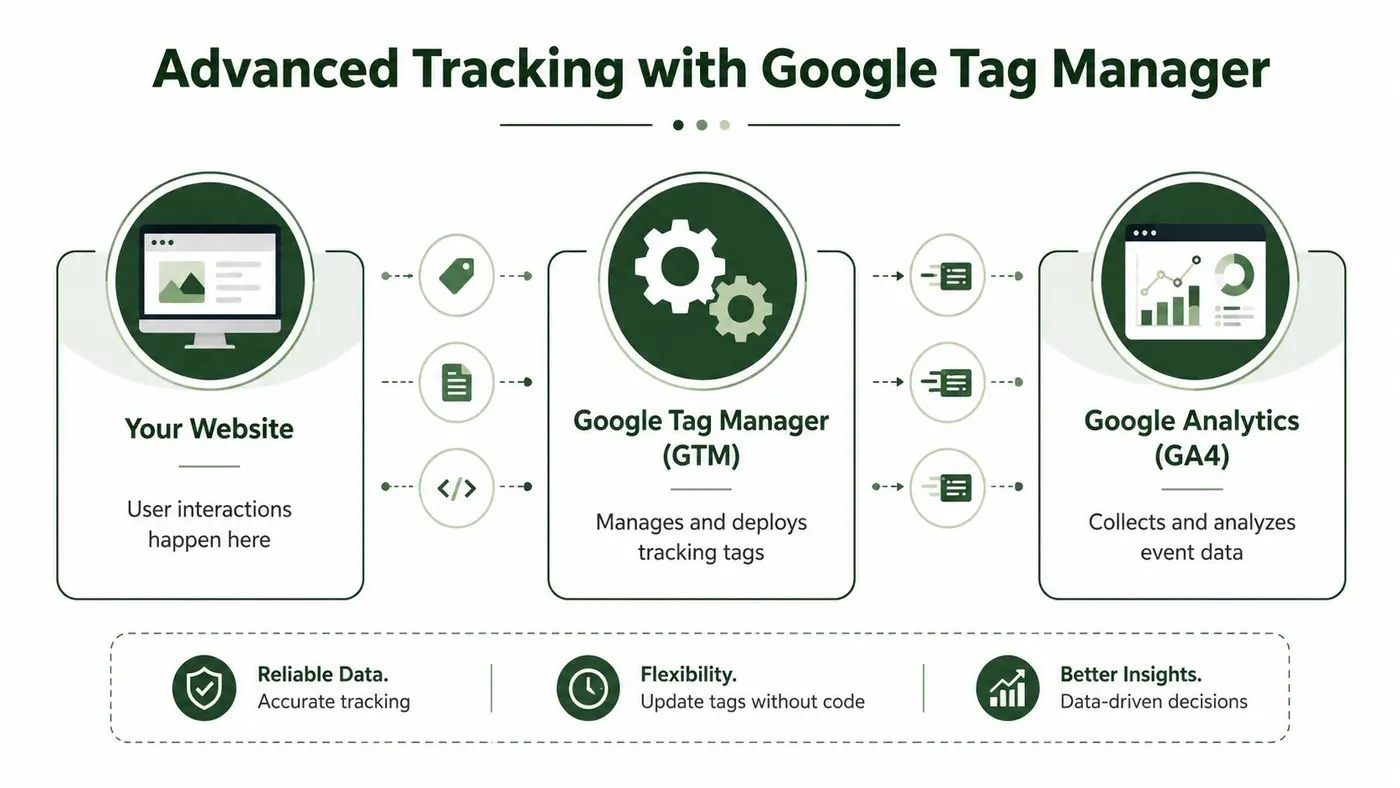
A good example is a Book a Demo button that opens a modal instead of sending the user to a thank-you page. Basic analytics may see the page. It won't know the user expressed intent unless you define that action explicitly.
The GTM model that makes this work
GTM has three parts you'll use constantly:
- Tags: what should happen. In this case, send a GA4 event.
- Triggers: when it should happen. In this case, when the right button is clicked.
- Variables: what extra information should travel with the event. In this case, button text, page path, or experiment variant.
If those three parts aren't clearly defined, the setup usually turns brittle fast.
A practical setup for a demo CTA
Suppose your sales team wants to know which pages generate demo intent, and your CRO team wants to compare different CTA wording in a test. Here's a setup that works well.
Step 1 defines the interaction
First, identify the exact click you care about. Don't fire on every button on the page. Fire on the specific button or group of buttons that represent a meaningful business action.
Useful trigger conditions often include:
- Click text: when the text is stable and controlled
- Click classes: when the site uses reliable CSS classes
- Click ID: when the element has a unique identifier
- Page path plus element rule: when the same button style appears in several contexts
Step 2 sends a dedicated GA4 event
Create a GA4 event tag in GTM and give it a name that reflects the action, such as demo_cta_click.
Then attach parameters that make later analysis easier. Typical examples are:
page_locationor page path- CTA label
- Section or module name
- Experiment name
- Variant name
These parameters matter more than many teams realise. Without them, every click rolls up into one undifferentiated total. With them, you can segment by context and tie the action back to specific page versions and tests.
Here's a good checkpoint before publishing changes:
Step 3 verifies trigger quality
A trigger that's too broad inflates performance. A trigger that's too narrow misses real intent. Test both the happy path and the awkward path. Click the button once. Click it repeatedly. Try it on other templates. Test mobile layouts if the DOM changes.
A tracking plan fails quietly. GTM will happily publish a technically valid setup that answers the wrong question.
When browser-side tracking isn't enough
Modern tracking also runs into signal loss. Consent choices, browser restrictions, and cross-device behaviour all affect what reaches GA4. That's one reason teams are increasingly discussing server-side approaches. If you want a grounded overview of that architecture and when it helps, Tagada's server-side tracking solutions give a practical explanation.
That doesn't mean every site should move immediately to server-side tagging. It does mean you should know why a pristine GTM setup can still produce incomplete data. Browser-based tracking is necessary. It isn't perfect.
What works and what doesn't
What works:
- Dedicated events for important actions
- Narrow triggers with clear business logic
- Useful parameters for later segmentation
- QA before publishing
What doesn't:
- Tracking every click on a page “just in case”
- Reusing one vague event for unrelated actions
- Depending on thank-you pages for every lead flow
- Assuming modal interactions will show up by magic
Conversion tracking with Google Analytics moves from being theoretical to operational. GTM gives you the control to track intent where it happens.
Tracking Experiment Revenue with Otter A/B
A/B testing gets interesting when you stop asking which variant got more clicks and start asking which variant produced more value. That sounds obvious, but a surprising amount of experimentation work still ends with click-through rate charts and no clean revenue view.
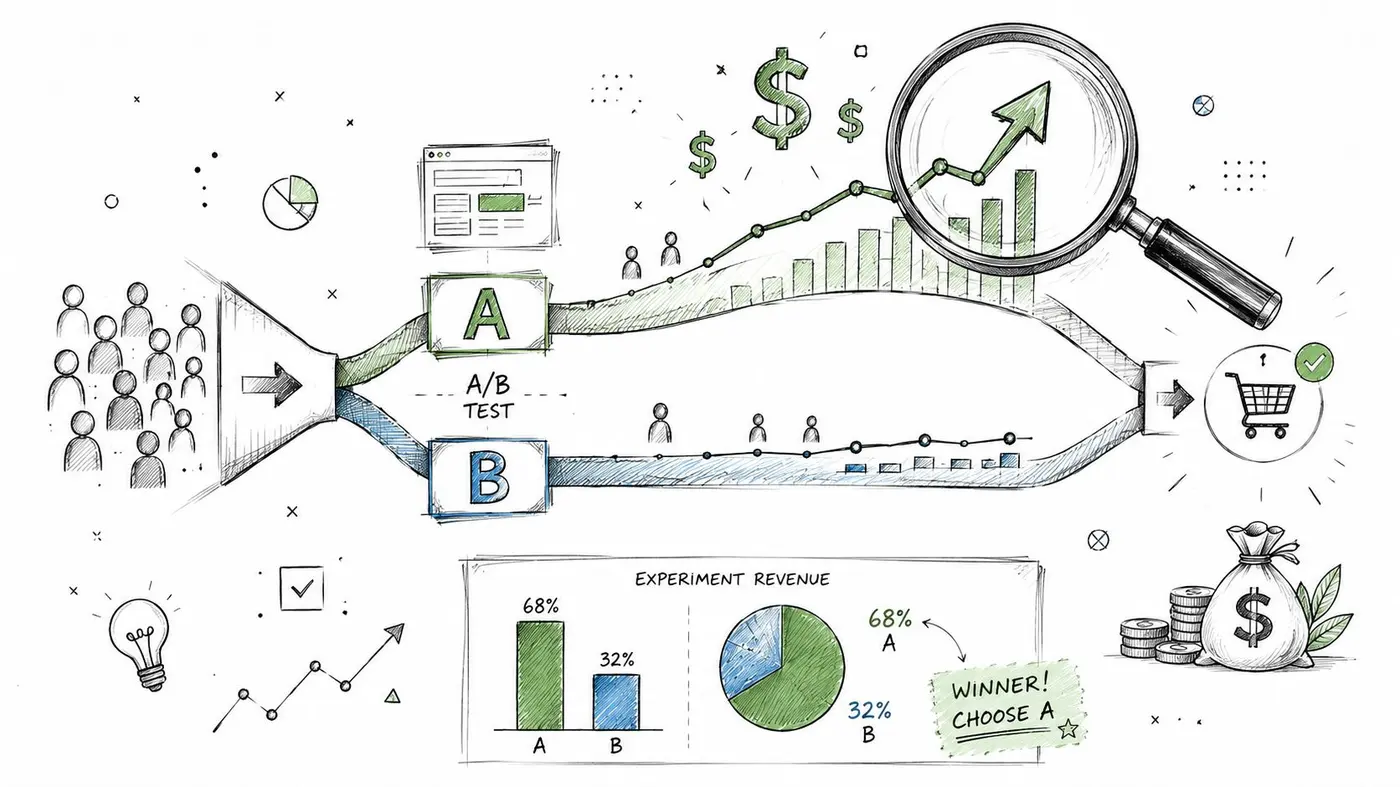
A realistic scenario is a product page test. Variant A keeps the original headline and CTA placement. Variant B changes the headline, moves social proof higher, and shortens the route to purchase. The team wants to know more than whether Variant B increased CTA clicks. They want to know whether it generated more pounds.
The missing link in most experiment setups
Most guides stop at conversion events. They'll tell you to track a sign-up, lead, or purchase. That's necessary, but it doesn't answer the experiment question unless the conversion can be tied back to the specific variant the user saw.
That means your analytics needs two things at the same time:
- Variant exposure data
- Outcome data with value attached
GA4 supports the value side well. You can assign a monetary value to a key event, which is useful when measuring the ROI of experiments and comparing business impact, not just raw counts. Schneider's explanation of event value and conversion metrics is here: key conversion metrics in Google Analytics. The same article also includes a basic worked example where 2,500 conversions from 5,000 visitors equals a 50% conversion rate.
Mapping experiment variants to GA4
This is the part to get right. When a user is exposed to a test variant, send an event to GA4 that records that exposure. A naming pattern like experiment_variant_view or otter_variant_view works well if the parameters do the primary descriptive work.
Useful parameters include:
- Experiment name
- Variant name
- Page type or template
- Session context if needed
Then, when the user later completes a purchase or lead event, GA4 can be used to analyse performance by variant in Explore reports, provided the variant context has been passed and retained sensibly in your implementation strategy.
If you're using Otter A/B's GA4 integration documentation, the goal is to make that variant exposure data flow into GA4 cleanly so you can compare outcomes by experiment condition without inventing a second reporting stack.
What a usable report looks like
A useful experiment report in GA4 doesn't need to be fancy. It needs to answer a business question cleanly.
For a product page test, I'd want to see:
- Variant name as a dimension
- Purchase event count as an outcome
- Event value or purchase value as the commercial lens
- Supporting diagnostic events only if they help explain the result
One tool option like Otter A/B can be practical, because it supports using GA4 events as experiment goals and gives teams a way to line up experiment exposures with conversion outcomes instead of duplicating instrumentation in multiple places.
Don't trust a winning variant that only improves upstream clicks. If the purchase event or event value doesn't move with it, you may have optimised curiosity, not revenue.
Revenue changes how you interpret tests
A variant can lose on raw conversion rate and still win commercially if it drives higher-value outcomes. The reverse is also true. A cleaner headline might increase sign-ups while attracting lower-intent traffic. A more direct CTA might reduce some clicks and improve completed purchases.
That's why conversion tracking with Google Analytics should sit inside the experimentation workflow, not beside it. The job isn't to prove that users interacted more. The job is to learn which version of the experience created more business value.
Verifying Data and Avoiding Common Pitfalls
Even a sensible setup needs QA. Before anyone presents a report to leadership or changes spend based on a new metric, verify the data path from action to report.

Use DebugView before trusting reports
In GA4, DebugView is the fastest way to confirm whether events are arriving and whether parameters are attached as expected. Don't just check that the event fired. Open it and inspect the payload.
Your QA pass should answer these questions:
- Did the right event fire? Not a near-match. The exact event.
- Did it fire once or repeatedly? Double-fires are common and expensive.
- Did the parameters come through? Especially experiment and variant fields.
- Did the key event status behave as intended? You want the reporting layer to reflect the implementation logic.
Count leads differently from purchases
One of the costliest mistakes is counting duplicate lead actions as though they were all unique business outcomes. Google Ads distinguishes between Every and One conversion settings. For lead generation, One is the recommended model to avoid inflated counts when a user submits the same form repeatedly. For purchases, Every is appropriate because each transaction is a distinct revenue event. Cometly's guide explains that distinction here: Google conversion tracking and Every vs One.
That rule sounds small. It changes reporting materially.
Expect some disagreement between platforms
Your GA4 totals and Google Ads totals won't always match perfectly. That isn't automatically a broken setup. Differences can come from attribution logic, time-zone settings, browser-side signal loss, consent restrictions, and cross-device behaviour.
That's why many teams now review approaches such as enhanced conversions. If you need a practical explanation of that layer, UFO Performance Marketing on enhanced conversions is a useful read.
One more thing to watch during experiments is traffic imbalance. If a test split looks odd, don't jump straight to creative conclusions. Check instrumentation and assignment quality first. A quick validation pass with Otter A/B's sample ratio mismatch checker can help you spot whether the split itself deserves investigation.
Clean reporting starts with scepticism. Verify first, interpret second.
If you want to connect experiment variants, GA4 events, and revenue in one workflow, Otter A/B is a practical place to start. It lets teams run website tests, use existing GA4 events as goals, and compare outcomes at the level that matters: not just which version got more clicks, but which one generated stronger business results.
Stop guessing
Ready to start testing?
Set up your first A/B test in under five minutes. No credit card required.
- 14-day free trial
- No credit card required
- Cancel anytime