Master A/B Testing in Excel
Master A/B testing in Excel. Learn data cleaning, t-tests, statistical significance, & visualize results for marketing success.


You've exported the test data, opened the CSV, and now you're staring at a sheet full of rows that don't look anything like a decision. That's a familiar place for marketers, CRO teams, and e-commerce managers. You don't need a heavyweight analytics workflow for the first pass. You need a clean way to check whether Variant B beat the control, and whether the result is strong enough to act on.
That's where testing in excel still earns its place. Excel is fast, widely available, easy to audit, and good enough for initial A/B test analysis when the test design is simple and the data is organised properly. Used well, it helps you move from raw export to a sensible recommendation. Used badly, it gives you a false sense of certainty.
Why Use Excel for A/B Testing Analysis
Excel is often the first tool teams reach for because it sits between raw data and a full experimentation stack. That's not a compromise. It's often the right starting point.
A marketer can export session or user-level data from Shopify, GA4, a testing script, or a backend report, open it in Excel, and start checking the basics quickly. Which variant had more conversions? How different are the averages? Is the observed gap likely to be noise or something worth shipping? For many straightforward tests, those are the first questions that matter.
Excel is more capable than most teams assume
Excel isn't just for totals, lookup formulas, and pivot tables. Microsoft's own function library includes hypothesis-testing-related functions such as CHISQ.TEST, CONFIDENCE.NORM, and CONFIDENCE.T, which means Excel can support inferential analysis as well as reporting, according to Microsoft's statistical functions reference.
That matters in day-to-day experimentation work because you're rarely just reporting what happened. You're trying to decide whether a difference between A and B is likely to reflect a real change in user behaviour.
Practical rule: Excel is strong when you need a quick, transparent check on a simple test. It gets shaky when the experiment becomes operationally complex.
The two parts of Excel that matter most
For A/B analysis, two built-in routes are commonly utilized:
- The Data Analysis ToolPak gives you menu-driven statistical tests and a fuller output table.
- Worksheet functions let you calculate specific values directly in cells when you want speed or a reusable template.
Both approaches work. The ToolPak is usually better when you want a worksheet another person can review line by line. Functions are useful when you already know exactly what test you need and want a lightweight model.
What statistical significance means in business terms
You don't need to turn into a statistician to use testing in excel sensibly. For marketers, the key idea is simple. A test result can look better by chance, especially when the sample is limited or behaviour is inconsistent. Statistical testing helps you judge whether the observed difference is convincing enough to treat as real.
That's why p-values, confidence intervals, and variance checks matter. Not because they're academic, but because they reduce the chance of pushing a redesign, CTA, or offer that only looked good in one export.
Setting Up Your Spreadsheet for Success
Bad analysis usually starts with bad structure. If your worksheet mixes user IDs, summary tabs, blank rows, copied screenshots, and half-cleaned exports, Excel will still let you run calculations. The result just won't mean much.
The cleanest setup is simple. Keep the raw data in one sheet. Build your analysis in another. Don't mix them.
Use a structure Excel can test properly
For a basic A/B test, the most useful layout is one row per observation, with columns that clearly separate assignment from outcome.
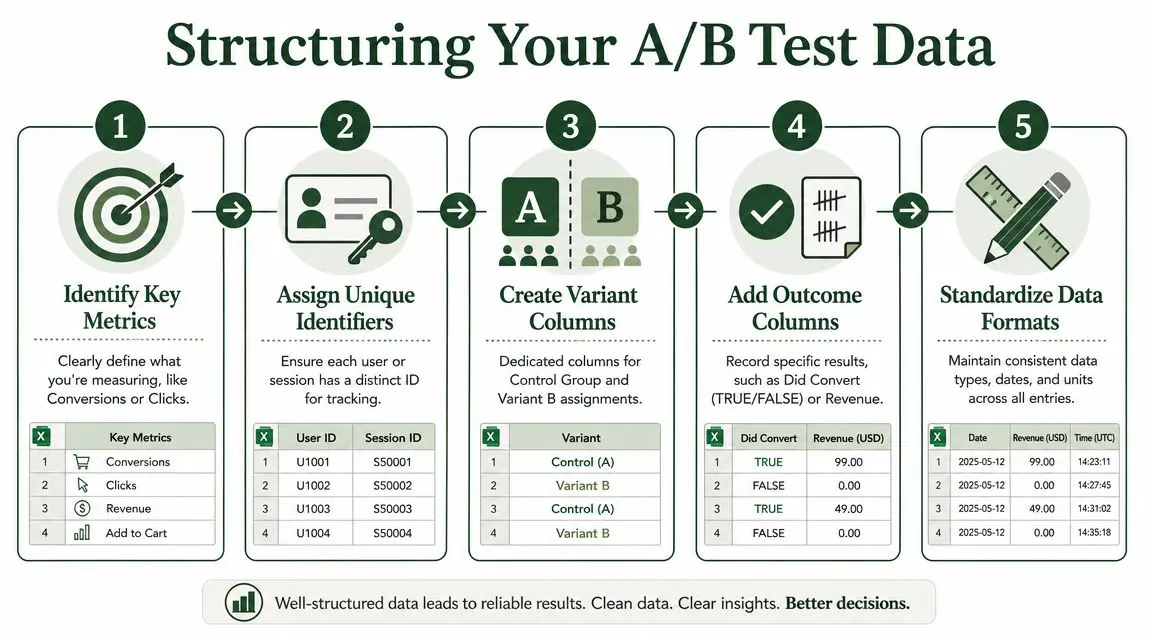
A practical sheet often includes columns like these:
| Column | What it stores | Why it matters |
|---|---|---|
| User or session ID | One unique record per row | Prevents accidental duplication |
| Variant | A or B | Separates control from treatment |
| Converted | 1 for yes, 0 for no | Makes conversion analysis easier |
| Revenue | Numeric value | Useful if revenue matters more than conversion count |
| Device or segment | Mobile, desktop, campaign, region | Helps with later checks, not primary analysis |
If you're running a paired analysis, matched observations should sit in aligned rows. If you're running an independent comparison, each group should have its own clean column when you feed data into the test.
Keep data types consistent
This is the boring part that saves hours later.
- Use one conversion format. Don't mix TRUE/FALSE, Yes/No, and 1/0 in the same field.
- Remove decorative formatting. Colours and merged cells don't improve analysis.
- Watch for blanks. Empty cells can distort ranges and create bad test inputs.
- Check numeric fields. Revenue stored as text is a common spreadsheet trap.
Clean columns beat clever formulas. If the data is consistent, the analysis becomes much easier to trust.
Turn on the Data Analysis ToolPak
If the ToolPak isn't enabled, Excel looks less capable than it really is.
On Windows, go to File, then Options, then Add-ins. At the bottom, choose Excel Add-ins, click Go, and tick Analysis ToolPak.
On macOS, go to Tools, then Excel Add-ins, and enable Analysis ToolPak if it's available in your version.
Once it's active, you'll usually find Data Analysis in the Data tab. That menu gives you access to the t-test options commonly needed for a first pass.
Separate raw data from decision-ready data
A reliable workbook usually has three tabs:
- Raw export
- Cleaned analysis data
- Output and charts
That separation makes your work easier to review and easier to revisit later when someone asks why a winner was called.
Preparing Your A/B Test Data for Analysis
Most test exports look clean until you inspect them properly. Then the problems appear. Staff sessions are mixed in with customer traffic. QA runs are still present. Some rows represent abandoned sessions you shouldn't count, while others represent valid non-conversions you absolutely should.
That distinction matters.

Start with exclusions you can defend
A typical e-commerce export might include several kinds of records that need review before any significance test:
- Internal traffic from your own team checking pages, QAing flows, or reviewing experiments
- Bot or obviously non-human sessions if your source system hasn't already filtered them
- Broken records where variant assignment is missing or the outcome field is unusable
- Duplicate entries caused by export joins, event duplication, or tracking mistakes
The standard to apply is simple. If you remove data, you should be able to explain why without looking at the result first. Don't exclude rows because they make Variant B look worse. Exclude rows because they were never valid observations in the first place.
Decide what counts as the outcome
Many Excel workflows often fail at a key point. Teams start by asking, “Which variant won?” when they haven't agreed on what winning means.
A common mistake in testing in excel is failing to decide upfront whether you're optimising for clicks, revenue per visitor, or average order value. That increases the risk of false positives because Excel makes calculation easy but offers no governance over test design, as noted in this discussion of multiple variants and metrics in Excel testing.
Here's a practical way to choose:
| Situation | Better primary metric |
|---|---|
| Landing page lead gen | Conversion to form completion |
| PDP or collection page | Add-to-cart or purchase, depending on test scope |
| Checkout test | Completed purchase |
| Offer or pricing presentation | Revenue-related metric if commercial impact matters most |
Pick one primary metric before analysis. You can still inspect supporting metrics, but don't let them decide the test after the fact.
Handle incomplete sessions carefully
Not every incomplete journey is invalid. A user who saw the page and didn't convert is usually a legitimate non-conversion. A row where assignment never happened or where the event stream is visibly broken is different.
The rule I use is operational rather than theoretical:
- Keep valid exposures that didn't convert.
- Remove observations that were never properly assigned or tracked.
- Document both decisions in the workbook.
If someone else can't follow your cleaning logic from the sheet itself, the analysis isn't auditable.
Check whether the test ever had a fair chance
Before you spend time on t-tests, ask whether the experiment was set up to produce a meaningful answer at all. If the expected signal is small and traffic is limited, Excel can still produce a p-value, but that doesn't mean the test was well planned.
Using a sample size calculator for experiment planning before launch is one of the easiest ways to avoid underpowered tests that generate ambiguous spreadsheets and messy stakeholder debates.
Build a cleaned sheet, not just a filtered view
Filters are useful for review, but final analysis should live in a deliberate cleaned dataset. Create a tab that contains only the rows you've decided to include, with consistent fields and a note at the top listing the inclusion rules.
That small bit of discipline prevents the most common spreadsheet mistake of all. Running analysis on one view, then presenting numbers from another.
Calculating Statistical Significance with T-Tests
Once the sheet is clean, you can run the comparison commonly referred to as significance in Excel. For simple A/B tests, that usually means a t-test.
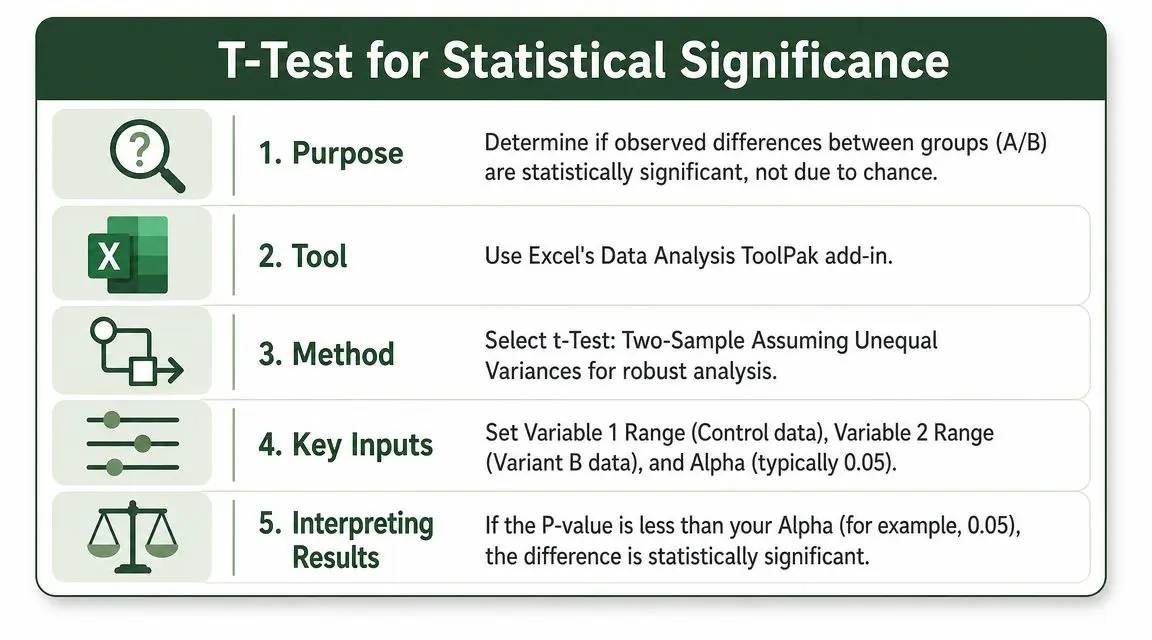
The core logic is straightforward. A t-test compares the means of two groups, with the null hypothesis that those means are equal. Excel guidance commonly used in training also treats 0.05 as the default significance threshold, so p-values below 0.05 are usually interpreted as statistically significant, as explained in this Excel t-test guide.
When a t-test makes sense
For spreadsheet-based A/B work, teams often encode the outcome as numeric values. That might be:
- 1 and 0 for converted vs not converted
- Revenue values per session or user
- Order values for customers in each group
In those cases, a t-test can act as a practical first comparison of group means. For many marketers, that's enough to answer an early-stage question such as whether the variant appears to outperform the control on the chosen metric.
The safer default in messy business data is usually the unequal-variance version. Real-world experiment groups often don't behave as neatly as textbook examples.
Running the test in the Data Analysis ToolPak
Use this workflow when you want a visible output table that colleagues can inspect.
- In Excel, go to Data and click Data Analysis.
- Select t-Test Two-Sample Assuming Unequal Variances.
- Choose the control column as Variable 1 Range.
- Choose the variant column as Variable 2 Range.
- Tick labels if your selected ranges include headers.
- Set Hypothesized Mean Difference to zero for a standard A/B comparison.
- Set Alpha to 0.05 if that's your chosen threshold.
- Choose an output location and run the test.
If your data is arranged as one binary outcome column plus one variant label column, create separate analysis columns for A and B first. The ToolPak expects clean input ranges.
A short demo helps if you want to see the interface before building your own workbook.
Which numbers in the output matter
The output table can look busier than it needs to be. For most A/B decisions, focus on a small subset:
| Output field | What to look for |
|---|---|
| Mean | The average outcome in each group |
| Observations | How many records were included per group |
| P(T<=t) one-tail or two-tail | The p-value relevant to your hypothesis |
| t Critical one-tail or two-tail | The threshold tied to the selected alpha |
Most marketing tests should use a two-tailed interpretation unless you had a clear directional hypothesis before launch and planned to evaluate the test that way.
Don't treat the ToolPak output like a green light or red light. Compare the p-value to your chosen alpha, then interpret the result in context.
A training guide for Excel t-tests also warns that analysts often use default settings without checking variance assumptions, and that's one of the easiest ways to misread business data in practice, according to this t-test walkthrough PDF.
Using T.TEST for a faster check
If you want a direct cell formula instead of the ToolPak, Excel also supports T.TEST(array1, array2, tails, type).
This is useful when you're building a compact analysis model. The logic matters, though:
- array1 is the first group
- array2 is the second group
- tails should match whether you're using a one-tailed or two-tailed test
- type should match the design and variance assumption
If you choose the wrong tails or test type, the p-value can be technically valid for the wrong question.
For a quick second opinion outside your workbook, a dedicated A/B significance calculator can help you sense-check the result before you share it.
What the p-value means for a marketer
In plain English, the p-value helps you judge how compatible your observed difference is with the idea that there's no real difference between the groups.
That doesn't mean a low p-value tells you the variant is “definitely better”, and it doesn't tell you whether the improvement is commercially meaningful. It tells you whether the observed difference is unlikely enough, under the null hypothesis, to justify calling the result statistically significant at your chosen threshold.
That's useful. It just isn't the whole decision.
Visualising and Communicating Your Test Results
A spreadsheet result becomes persuasive when another person can understand it quickly. Stakeholders rarely want to inspect a t-test table. They want to know what changed, whether it matters, and how confident they should feel about acting on it.
That's why a plain chart often does more work than a dense worksheet.
Build one chart that answers the real question
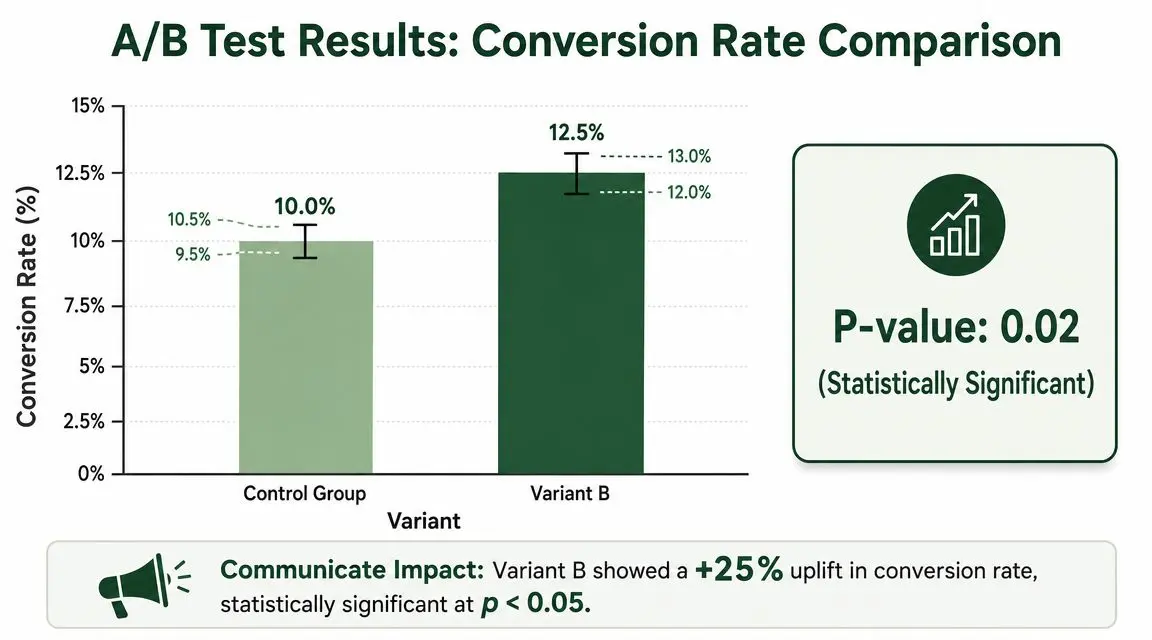
For most A/B reports, a simple column or bar chart is enough. Put the variants on the horizontal axis and the primary metric on the vertical axis. Keep colours restrained. Label the bars clearly. Don't bury the conclusion inside decorative formatting.
The point isn't to impress anyone with Excel. The point is to remove ambiguity.
A good chart usually includes:
- The control and treatment side by side
- Clear metric labels such as conversion rate or average order value
- Visible sample context in nearby notes or labels
- Error bars if you want to show uncertainty, not just the central estimate
Add uncertainty, not just averages
Averages alone make weak tests look stronger than they are. Error bars force a more honest conversation because they remind everyone that measured outcomes come with uncertainty.
If you want to explain this clearly to non-technical stakeholders, a practical primer on confidence intervals in statistics helps frame why uncertainty belongs in the chart, not hidden in a footnote.
A chart without uncertainty invites overconfidence. A chart with uncertainty invites better decisions.
In Excel, you can create a custom error bar series if you've calculated the relevant interval or margin around each group estimate. The exact mechanics depend on your workbook setup, but the communication principle is consistent. Show both performance and doubt.
Use a reporting sentence that management can forward
Most stakeholders need one paragraph they can paste into Slack, email, or a slide. Keep it tight and specific.
A useful template looks like this:
Variant B outperformed the control on the primary metric in this test. The comparison was assessed in Excel using a t-test, and the result met the team's chosen significance threshold. The recommendation is to validate operational considerations, then ship the variant or continue monitoring if the business impact is sensitive.
If the result is inconclusive, say that plainly:
The variant showed a directional difference, but the analysis did not provide enough evidence to treat it as a clear winner. The safest next step is to gather more data or rerun the test with a cleaner design.
What strong communication includes
- Name the metric
- State which variant led
- Say whether the result met your significance threshold
- Mention uncertainty where relevant
- End with a decision or next action
That's what turns testing in excel from a maths exercise into a decision tool.
Common Pitfalls and When to Move Beyond Excel
Excel is useful because it's accessible. It's dangerous for the same reason.
The file will let you filter, group, transform, test, and chart almost anything. It won't stop you from peeking at results every day, switching the primary metric halfway through, or declaring a winner after checking multiple cuts of the same dataset until one looks convincing.
The failure modes that matter most
The biggest problem isn't that Excel calculates badly. It's that teams often use it without guardrails.
Here are the mistakes that cause the most trouble:
- Peeking too early. Repeatedly checking a running test and stopping when the result looks good weakens the decision.
- Treating low-volume data as decisive. In practice, sparse or noisy data makes frequentist outputs unstable and easy to overread.
- Testing too many things at once. Multiple variants, segments, or metrics increase the risk of false positives.
- Confusing significance with value. A statistically significant result may still be commercially trivial or operationally risky.
Many Excel tutorials miss the problem of low event volume, even though that's exactly where spreadsheet outputs become fragile. Guidance on unequal-variance testing also points out that teams should use effect sizes or confidence intervals alongside p-values rather than treating the spreadsheet result as a final verdict, as discussed in this practical note on Excel tests and low-volume data.
When Excel stops being enough
Move beyond Excel when the experiment requires any of the following:
| Situation | Why Excel struggles |
|---|---|
| Ongoing monitoring | Static worksheets don't govern repeated looks |
| Multiple variants and segments | Manual control becomes error-prone |
| High-stakes revenue decisions | Auditability and consistency matter more |
| Cross-team experimentation | Governance matters as much as calculation |
| BI-heavy reporting | You need cleaner data flows and shared logic |
At that point, it helps to think more broadly about your analytics stack and make informed decisions on BI tools that fit how your team reports, governs, and acts on experiment data.
Excel is excellent for first-pass analysis. It isn't an experimentation operating system.
If you still want to use spreadsheets, the best compromise is a locked-down template with clear inputs, documented assumptions, and limited room for ad hoc interpretation. That won't solve every problem, but it reduces the odds of a bad decision hiding behind a neat table.
If you've reached the point where spreadsheets are slowing your testing workflow, Otter A/B is worth a look. It gives teams a faster way to launch experiments, track significance, and measure business outcomes like purchases and revenue without stitching everything together manually in Excel.
Stop guessing
Ready to start testing?
Set up your first A/B test in under five minutes. No credit card required.
- 14-day free trial
- No credit card required
- Cancel anytime