Google Tag Manager Testing Made Simple
Master Google Tag Manager testing with our expert guide. Learn how to debug tags, validate data, and ensure your tracking works perfectly before you publish.
Properly testing your Google Tag Manager setup is the only way to guarantee your tags are firing correctly and your data is clean. It’s a critical process that involves using GTM's Preview mode, the Tag Assistant, and your browser’s developer tools to make sure your marketing and analytics tags are gathering accurate information without disrupting your website.
Why Flawless GTM Testing Is Non-Negotiable
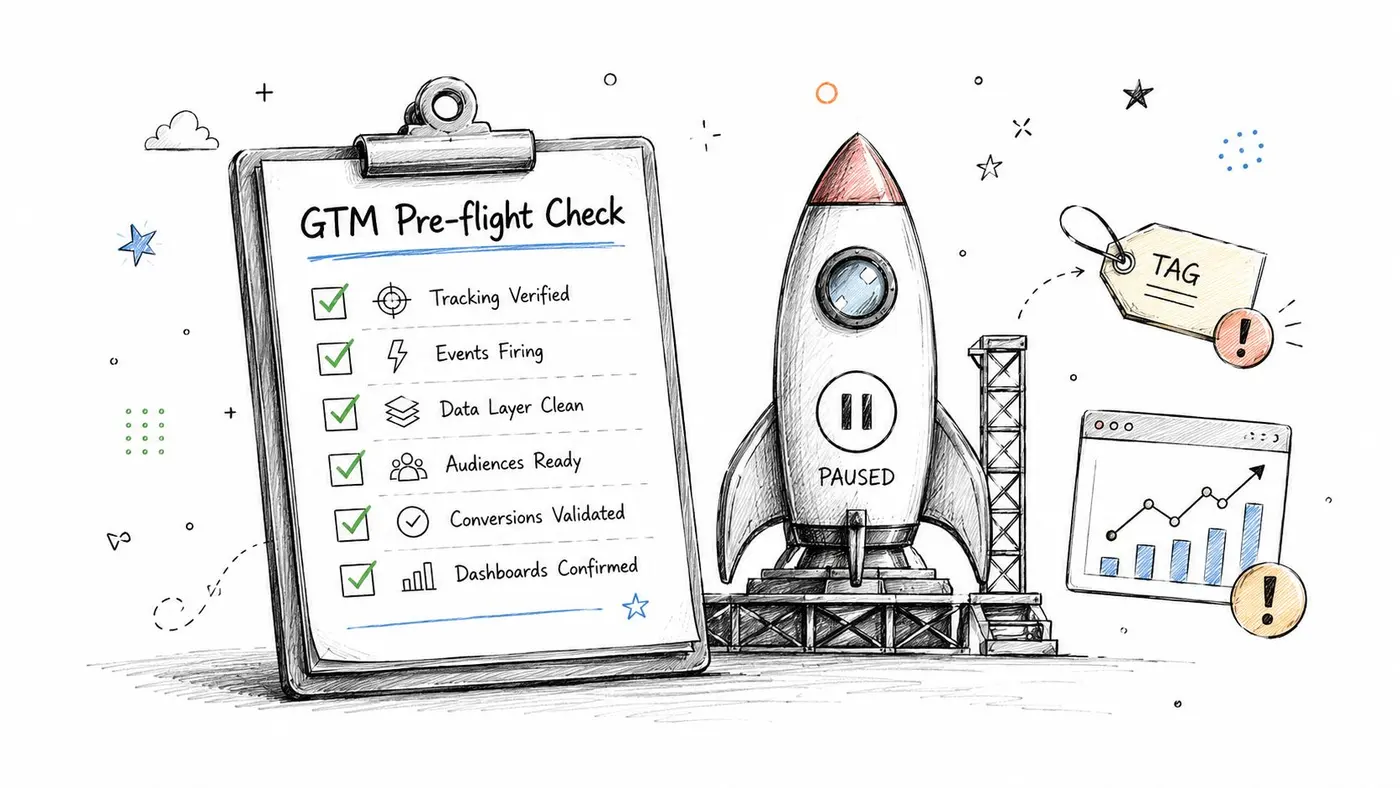
Skipping Google Tag Manager testing is like launching a rocket without a pre-flight check—you're just inviting disaster. This isn't just about a few minor tracking errors; faulty tag implementations can completely corrupt your analytics, leading to poor business decisions and seriously wasted marketing spend.
For tools like Otter A/B, where accurate event tracking is the bedrock of reliable A/B test results, this process is absolutely fundamental. Every single change, no matter how small it seems, needs to be thoroughly verified.
At the heart of this verification process is your essential toolkit:
- GTM Preview Mode: This is your command centre for seeing exactly which tags fire on which interactions, all in real time.
- Tag Assistant: A crucial debugger for digging into the event summary and diagnosing what’s happening in the data layer.
- Browser DevTools: For the really deep dives, this is where you can inspect data packets, network requests, and console errors.
The consequences of getting this wrong are very real. One recent analysis found that an astonishing 78% of failed A/B tests were traced back to unvalidated GTM tags. When your measurement is broken, your conclusions will be too.
Making sure your integrations are solid, like how you manage website cookies with Termly GTM, is a key part of maintaining both data integrity and user consent compliance. This makes rigorous testing indispensable, especially when you're moving changes between different environments. For a deeper look at this, our guide on staging and configuring website changes is a great resource.
Your Essential GTM Testing Toolkit
When it comes to effective Google Tag Manager testing, you don't need a massive, complicated software stack. It all boils down to mastering a core trio of tools. Think of them less as a checklist and more as different lenses you can use to inspect your setup, each giving you a unique perspective.
The absolute heart of any GTM workflow is the built-in Preview mode. This is your personal sandbox. When you enable it, GTM creates a secure debugging link for your site. This lets you see all your draft container changes in action, on the live website, but completely invisible to your actual users. It's the only way to safely and accurately see how your tags will behave before you unleash them.
Here's the familiar Google Tag Manager interface where you'll build your containers and, crucially, hit that "Preview" button to kick off your testing. The real power isn't just in building the logic; it's in being able to verify every single piece of it in a live environment.
Getting Granular with Tag Assistant and DevTools
Once you're in Preview mode, your main analysis window is the Tag Assistant debugger. This is the console that pops up (usually at tagassistant.google.com) and gives you a play-by-play of everything happening in your container. It’s an event timeline showing every click, form submission, and page view, detailing exactly which tags fired and, just as importantly, which ones didn’t. This is where I spend 90% of my debugging time, figuring out why a trigger isn't quite right or confirming a variable is pulling the correct value.
But what happens when Tag Assistant doesn't tell the whole story? For a deeper dive, you'll need to open up your browser's built-in Developer Tools. Don't be intimidated; you only need to focus on two key areas:
-
The Console: This is your direct line to the
dataLayer. You can seedataLayer.push()events as they are executed and, critically, spot any JavaScript errors that could be silently breaking your tracking scripts. - The Network Tab: This tab is the ultimate source of truth. It shows you the actual network requests (or "hits") being sent from the browser to platforms like Google Analytics. You can inspect these packets to confirm that the final data being sent is exactly what you expect.
Think of it this way: Preview mode turns on the lights, Tag Assistant tells you which bulbs are working, and DevTools lets you check the wiring. Mastering this flow is the cornerstone of any solid Google Tag Manager testing strategy.
GTM Testing Tools at a Glance
To put it all together, here’s a quick breakdown of how these tools fit into your daily workflow.
| Tool | Primary Use Case | Best For |
|---|---|---|
| GTM Preview Mode | Activating and viewing draft container changes on a live site. | Safely testing unpublished tags, triggers, and variables without impacting real users. |
| Tag Assistant | Analysing the event timeline and tag firing status. | Debugging trigger conditions, checking variable values, and understanding the sequence of events. |
| Browser DevTools | Inspecting underlying code and network traffic. | Diagnosing JavaScript errors, validating dataLayer pushes, and confirming final data sent to third-party tools. |
Choosing the right tool for the right problem is what separates a quick fix from hours of frustration.
From my experience working with UK businesses, a disciplined approach using Preview mode and Tag Assistant is vital, especially for reducing errors in A/B test implementations. For a public sector perspective, the Government Digital Service offers some great insights into GTM testing tools. This methodical testing is just one piece of the puzzle, of course. You can discover other essential practices by exploring our list of the best website optimisation tools.
Putting Your Tags and Triggers to the Test
Alright, let's get our hands dirty. Having a clear testing process is really what separates a reliable setup from one that’s just guesswork. The whole point is to make sure your tags fire precisely when they should and, just as crucially, to figure out why they don't when things go wrong.
Picture this: you've just configured a Google Analytics 4 event for a "newsletter_signup" form. You go to the site, fill it out, and hit submit... but nothing happens in Tag Assistant. Don't panic. This is where the real detective work begins.
Instead of guessing, you just click on the Form Submit event in the Preview mode timeline on the left. Then, under the "Tags Not Fired" section, find your GA4 tag. GTM will show you the exact trigger conditions, complete with a big red "X" next to the one that failed. It’s that simple. Maybe your trigger was set to look for a form ID of id="newsletter-form", but the developer actually implemented it as id="email-signup-form". In less than 30 seconds, you've found the root cause without any frantic searching.
Checking Your Data: Are the Variables Correct?
Getting a tag to fire is only one piece of the puzzle. You also have to be certain that the data it’s sending is accurate. This is where variables come in—they provide the context for your analytics, like product names, prices, or the text on a clicked button.
Let's imagine you’re testing a critical e-commerce purchase event. After making a test purchase in Preview mode, head straight to the "Variables" tab for that conversion event. This is your moment of truth. You should see all your variables populated with live data.
-
{{Transaction ID}}: Is it showing a unique order number? -
{{Transaction Total}}: Does it match the correct purchase value? -
{{Currency}}: For a UK store, this should read "GBP".
If you see that {{Transaction Total}} is showing "undefined" or the wrong amount, you immediately know the tag itself is firing fine; the problem lies with the data it's being fed. This insight lets you focus your investigation on the data layer or the variable's configuration, not the trigger.
This core diagnostic workflow is laid out perfectly in the process below.
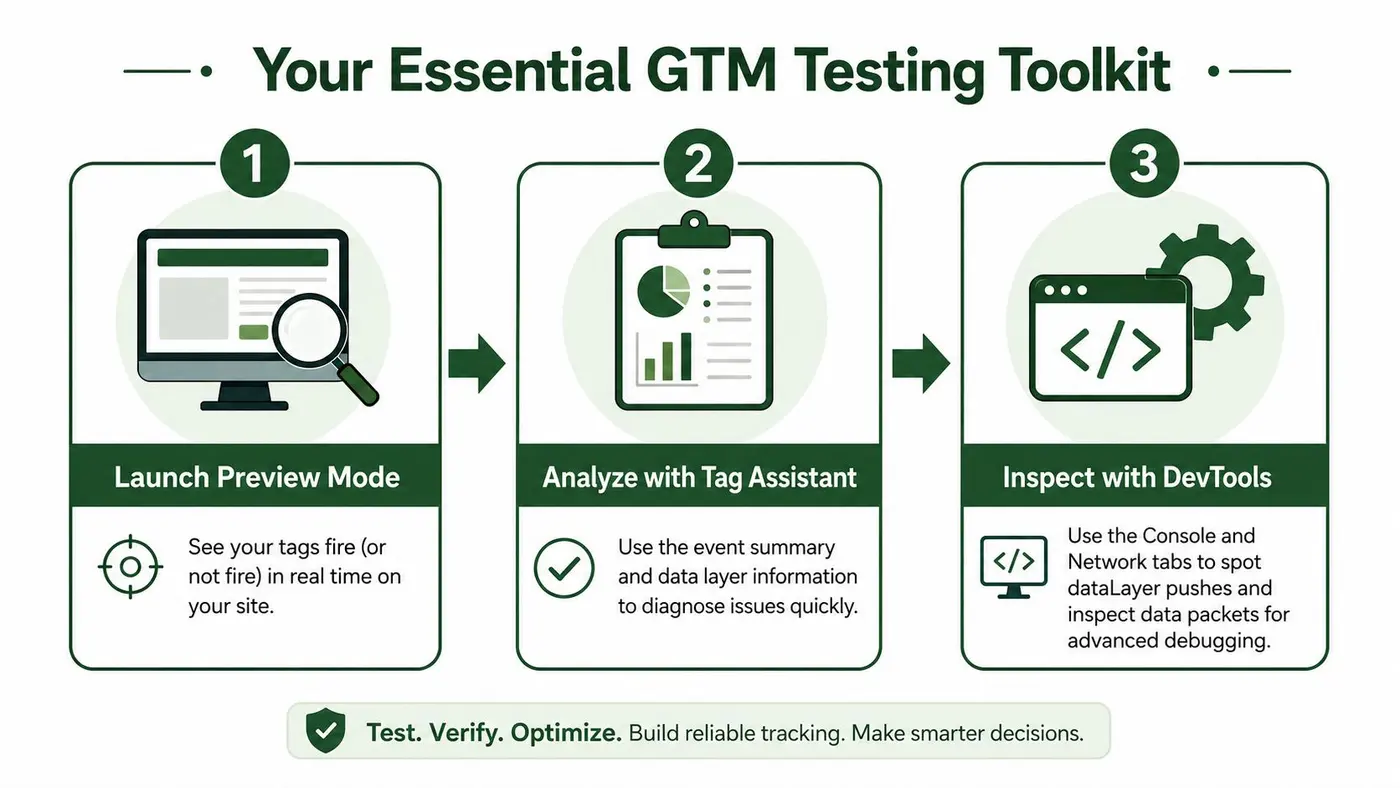
This simple framework—Preview, Analyse, Inspect—is your go-to for troubleshooting nearly any issue you'll encounter in your Google Tag Manager testing. It works for everything from basic pageview tags to the most complex e-commerce implementations.
I’ve always found that the most powerful part of Preview mode is the trigger checklist. Seeing that green tick next to a condition that was met, or the red 'X' next to one that wasn’t, takes all the mystery out of debugging. It turns a frustrating problem into a straightforward fix.
This methodical approach becomes even more valuable when you’re integrating other platforms. For example, if you're setting up goals for an A/B test in Otter A/B, you have to be absolutely sure the right events are firing for the right variant. To see how this works in practice within a development environment, you can read more on how Otter A/B uses its own preview mode for testing experiments.
Mastering the Data Layer and Custom Events
When you move past tracking simple page views and clicks, you’ll quickly find yourself digging into the Data Layer. I like to think of it as the central nervous system for a website. It’s essentially a JavaScript object that acts as a middleman, passing crucial information from user interactions on your site straight into Google Tag Manager.
Getting this right is the key to tracking more complex actions, like form submissions, video plays, or just about anything that isn't a standard page load.
So, how do you check what’s happening in there? Your main tools will be GTM’s own Preview mode and your browser’s developer console. Inside the Tag Assistant debug panel, the ‘Data Layer’ tab is your best friend. It gives you a snapshot of exactly what information was passed at every single event on the page, letting you see precisely what GTM could see at that moment.
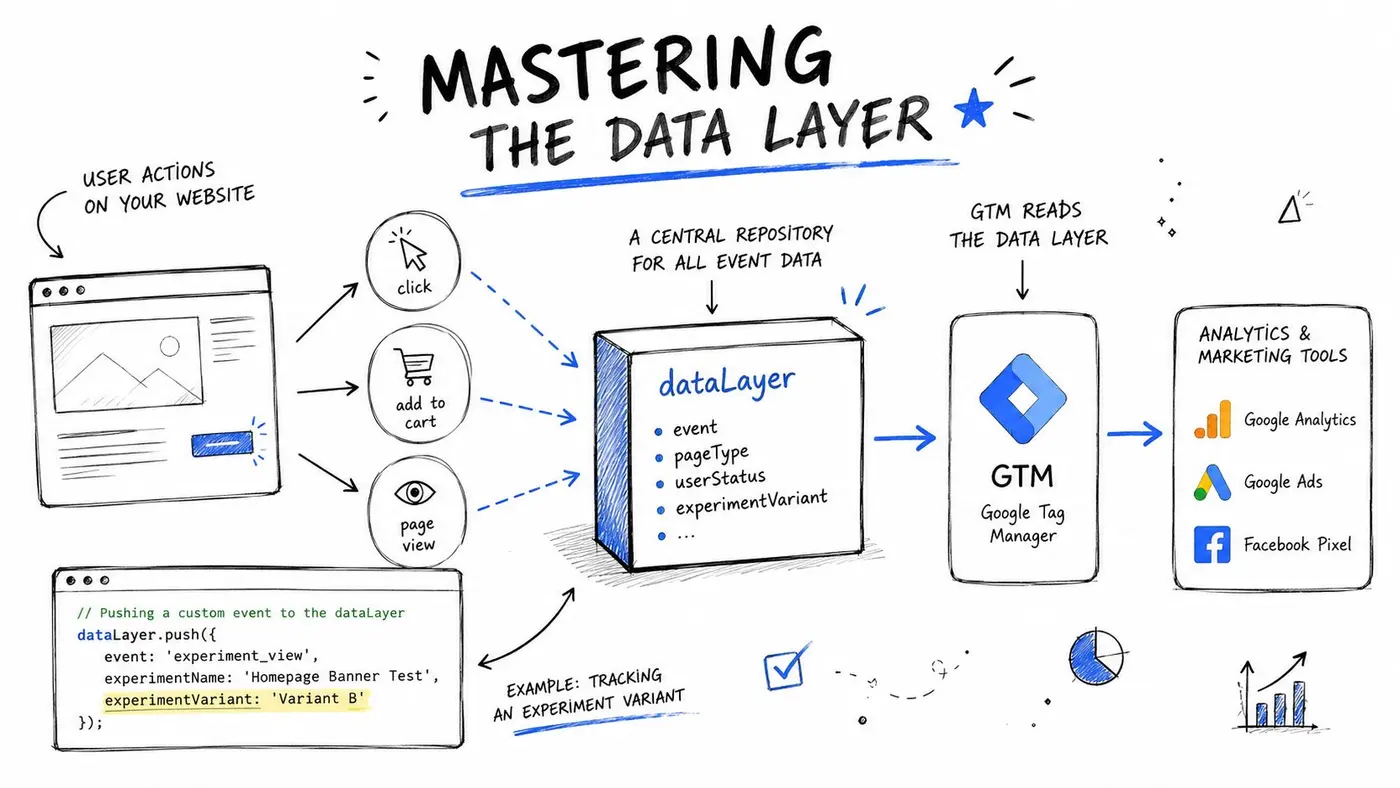
This level of detail is absolutely essential for more advanced tracking setups, especially when you start running A/B tests.
Verifying Custom Events for A/B Testing
Let's walk through a common scenario. Imagine you're using an A/B testing tool like Otter A/B to see which headline on your landing page gets more sign-ups. For this to work, your developer needs to implement a custom dataLayer.push() that fires an event when a user is exposed to a test variant. Your job in Google Tag Manager testing is to make sure that push is firing perfectly.
Fire up Preview mode and navigate to the page where the experiment is running. In the Tag Assistant timeline on the left, you should see a new custom event pop up—it might be named something like otter.experimentView. Click on it.
Now, head over to the ‘Data Layer’ tab. This is the moment of truth. You need to confirm two things:
- The
eventkey has the correct value, in this case,otter.experimentView. - The other data you need is there, such as an
experimentIdandvariantName, and their values match the test variant you’re currently seeing on your screen.
Getting this part right is non-negotiable. It's the foundation for everything that follows. Only with clean data in the Data Layer can you build GTM triggers that fire analytics tags for specific variants, which is how you get the reliable data needed to pick a winner.
If you click the event and don't see that data, you've found a problem before it had a chance to pollute your results. This is your cue to go back to the developer and check the implementation script. This simple, methodical check is what separates messy, unreliable A/B test data from the clean results that lead to confident decisions.
Your Pre-Publish Quality Assurance Checklist
Alright, you’ve built your tags, and everything looks good in Preview mode. Before you even think about hitting that "Publish" button, there's one last, crucial step: a final quality assurance (QA) run. Think of it as the final sanity check that stands between a smooth deployment and a weekend spent fixing broken analytics.
Key Checks Before You Go Live
First on your list should always be a regression test. This just means you need to double-check that your existing, business-critical tags are still firing correctly. It’s surprisingly easy to introduce a change that accidentally breaks an old pageview or conversion tag.
Next, you absolutely must verify that no personally identifiable information (PII) is being collected by mistake. Scour your variables and tag parameters for any stray email addresses, names, or other sensitive data. Getting this wrong can have serious privacy implications.
Before you publish anything, get into the habit of creating a new, named version in GTM. Give it clear notes detailing exactly what you changed. This isn't just good organisation; it’s your one-click escape hatch if a problem slips through and you need to roll back immediately.
Broadening Your Testing Feedback
If you're rolling out more complex tracking, especially as part of a new feature launch, consider how you’re gathering user feedback. A proper system for streamlining beta feedback can uncover GTM issues that you might miss on your own, as real users interact with the site in unexpected ways.
This kind of methodical approach is common among experienced teams. In fact, reviewing change logs and having a solid QA process is a well-established best practice. A recent study showed that 94% of UK digital agencies review GTM’s change history before publishing a new container version. This simple habit has been shown to cut GTM-related tracking failures by a massive 57% in large organisations. You can learn more about these Tag Manager insights and see why a pre-publish checklist is so vital.
Common GTM Testing Questions Answered
Even seasoned pros run into the same handful of questions when they're deep in a Google Tag Manager testing session. Let's walk through some of the most frequent queries that come up and get you the answers you need.
How Can I Test GTM on a Live Site Without Affecting Users?
This is a big one, and thankfully, GTM has a brilliant built-in solution: Preview mode. When you enable Preview, GTM generates a secure connection just for your browser.
What this means is you can browse your live website and see all your new tags, triggers, and variables in action, but only for you. Your actual website visitors won't see a thing; they'll continue to get the old, published version of your container. It gives you a safe sandbox on your live environment to test with total confidence before you publish.
My Tag Is Not Firing—What Should I Check First?
Ah, the age-old question! Don't worry, we've all been there. When a tag stubbornly refuses to fire, your first stop should be the Preview mode timeline. Find the specific interaction or page load where you expected the tag to fire.
Now, click on the tag itself in the 'Tags' tab. This is where the magic happens.
GTM will give you a complete breakdown of its firing conditions. You'll see green ticks next to the conditions that were met and, more importantly, a red cross next to the ones that failed. That red cross is your culprit—it tells you exactly what went wrong and where you need to focus your troubleshooting.
Can I Test GTM Changes on My Mobile Phone?
You absolutely can, and you absolutely should. So much of today's web traffic is mobile, so testing on a real device is non-negotiable. To do this, make sure you're already in Preview mode on your desktop.
In the Tag Assistant window, look for the three-dot menu in the corner and choose 'Share'. This will give you a unique preview URL. Just open that link on your phone or tablet (it needs to be on the same Wi-Fi network). Your mobile device will instantly join the debug session, allowing you to see all the events firing on your computer's screen as you tap and scroll on your phone. It's an incredibly powerful way to debug mobile-specific tracking.
Stop guessing
Ready to start testing?
Set up your first A/B test in under five minutes. No credit card required.
- 14-day free trial
- No credit card required
- Cancel anytime