Poor Web Design Signs That Lose Customers
Spot poor web design before it costs sales. UK signs, accessibility barriers, mobile failures and fixes that cut bounce in 2026.

80% of UK consumers surveyed by Samsung UK and OnePoll in 2024 said they struggled with websites that weren't optimised for accessibility, according to Samsung UK's accessibility survey. That reframes poor web design. The problem isn't just an unfashionable colour palette or an old logo. It's a website that makes an ordinary task difficult or impossible.
For a shopper, that might mean finding delivery information but being unable to read it, selecting a product but failing to operate its size selector, or completing a form only to get stuck at verification. A useful diagnosis starts with those blocked tasks. A useful repair ends with evidence that people can finish them.
Signs of Poor Web Design and What They Cost
Poor web design is any layout, interaction or page weight that stops someone finding, understanding or completing a task. You can diagnose it without debating whether the site looks modern: choose a customer goal and try to complete it under realistic conditions.
The commercial consequence is clear. In the 2019 Click-Away Pound survey, 69% of participants with access needs said they would leave a problematic website and look elsewhere if possible; the report estimated £17.1 billion in UK revenue at risk because disabled shoppers couldn't use websites effectively.
UK access barriers that signal poor web design
The shares below describe people with access needs reporting each barrier in that survey. The task and first-check columns translate those findings into a practical inspection checklist.
| Barrier | Share reporting it | What it interrupts | First check |
|---|---|---|---|
| Overcrowded pages | 66% | Finding and comparing information | Cut content to the task |
| Problematic reCAPTCHA | 63% | Proving you are human and continuing | Offer an accessible alternative |
| Poor link information or navigation | 59% | Moving to the right page | Rewrite links so the destination is clear |
| Difficult forms | 56% | Checkout, enquiry and account steps | Remove fields the task does not need |
| Poor legibility from colour or layout | 55% | Reading prices, errors and instructions | Check contrast and text layout |
| Moving images and graphics | 53% | Concentration and control of the page | Let people pause or stop motion |
| Poor keyboard access | 42% | Reaching controls without a mouse | Tab the whole journey with a visible focus |
Overcrowding isn't just a question of how much content appears. A product page becomes difficult when promotional banners compete with delivery costs, returns information and the purchase button. Removing useful details can make matters worse, so prioritise the information needed for the current decision rather than chasing empty space.
Navigation has a similar distinction. A compact menu isn't necessarily clear: shoppers still need recognisable categories and links that explain their destination. Repeated links labelled “More” leave people guessing, especially when they encounter those links outside their surrounding visual context.
Trace the interruption to a customer task
Forms deserve particular attention because users have already invested effort by the time they reach them. Check whether labels remain visible after typing, errors identify the field needing attention, and previously entered information survives a failed submission. A reassuring design can still frustrate someone if it discards their address.
For ecommerce teams reviewing the whole purchase journey, Quikly's guide to designing a smoother path to checkout offers a useful companion perspective. Use that broader journey view to connect individual page defects with the next action a shopper needs to take.
Diagnostic rule: Describe the failure as a blocked action, not a visual preference. “Shoppers can't find delivery charges” is actionable. “The page feels dated” isn't.
Mark the three barrier rows that most closely resemble your homepage, menus, forms and checkout. For each, write the task affected and the point where someone would have to guess, retry or leave.
Accessibility Defects That Lock Out Shoppers
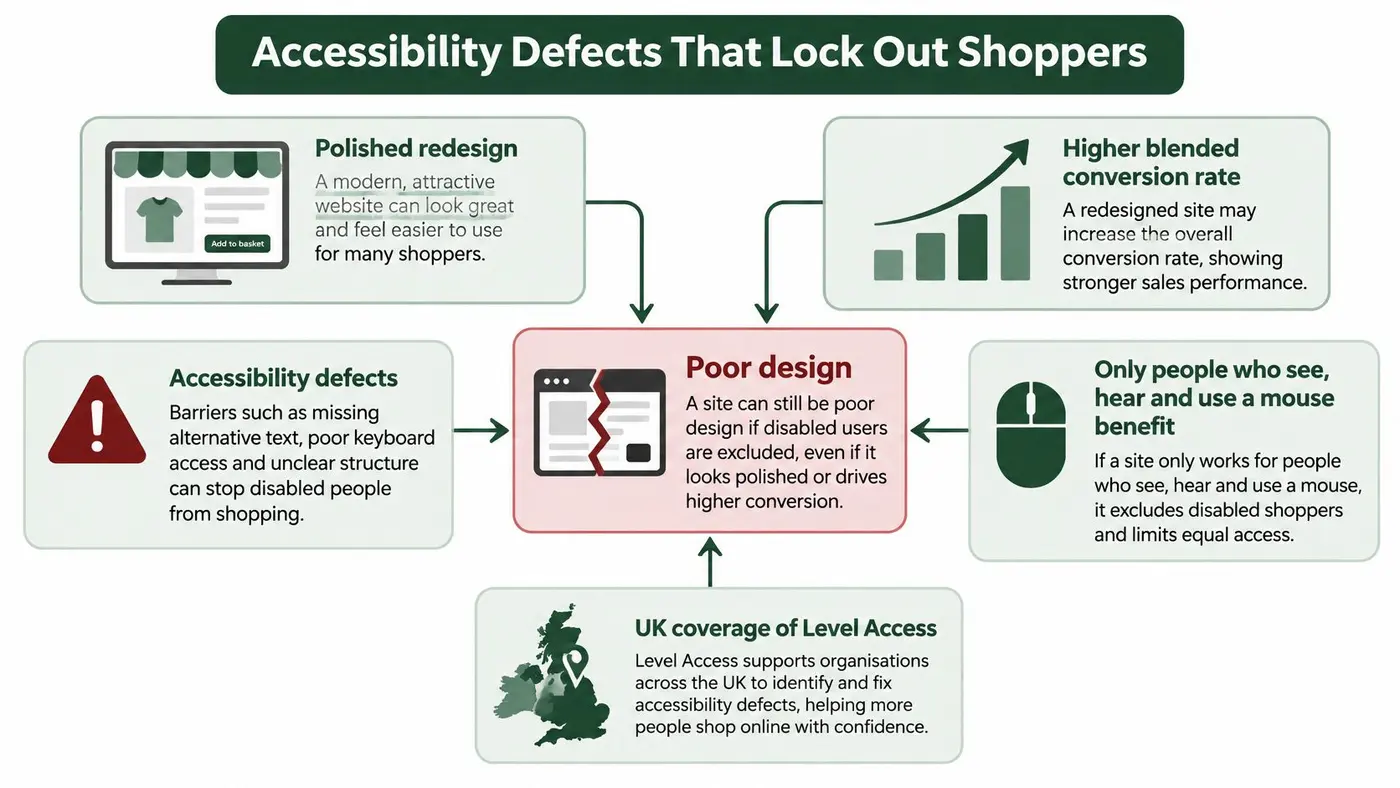
A polished redesign or a higher blended conversion rate can still represent poor web design if only people who can see, hear and use a mouse benefit. An overall improvement doesn't establish that every essential interaction remains usable.
Level Access's findings on popular UK retail websites reported that 84% of the country's 100 most popular retail websites had homepage issues capable of creating critical barriers for disabled users, while every homepage tested had at least one WCAG 2.1 AA violation. These findings concern retail homepages, not every page or transaction, but they show why visual polish isn't an accessibility test.
Where audited WCAG issues clustered
A separate UK public-sector accessibility monitoring report identified 2,691 WCAG issues across a detailed sample of 421 tests, with the following issue shares. This isn't a retail conversion benchmark; it helps identify the implementation failures teams should inspect.
| Defect | Share of issues | Who it blocks |
|---|---|---|
| Invisible keyboard focus | 12% | Keyboard users who cannot see their place |
| Incorrect names, roles or values | 11% | Screen reader users hearing unnamed controls |
| Insufficient colour contrast | 11% | People who cannot read faint text or controls |
| Parsing, roles and information relationships | 40% | Anyone relying on correct structure and semantics |
The combined structural category overlaps with some individual categories, so these rows shouldn't be added together. Its importance is practical: many defects require repairs to HTML and accessibility semantics, not another coat of paint.
Inspect what the interface communicates
A keyboard user needs to see which control will respond when they press Enter. A screen reader user needs a product selector to announce its purpose and current state. A low-vision shopper needs readable prices, instructions and errors, not just a high-contrast headline.
Merchandisers can flag suspicious patterns before an engineering review. Look for icon-only buttons without meaningful names, headings chosen for their size rather than their place in the page structure, and product photographs without descriptions that communicate relevant information. Decorative images need different treatment from images that explain a product.
For a plain-language companion to that review, the Growth 4 Trades accessibility guide provides a useful starting point for discussing website accessibility standards with colleagues.
A glossy shop window with no door handle still keeps people outside. Judge digital access the same way: can someone find the product, understand its options and reach checkout using their usual means of interaction?
Fast Averages That Still Fail Slower Visitors
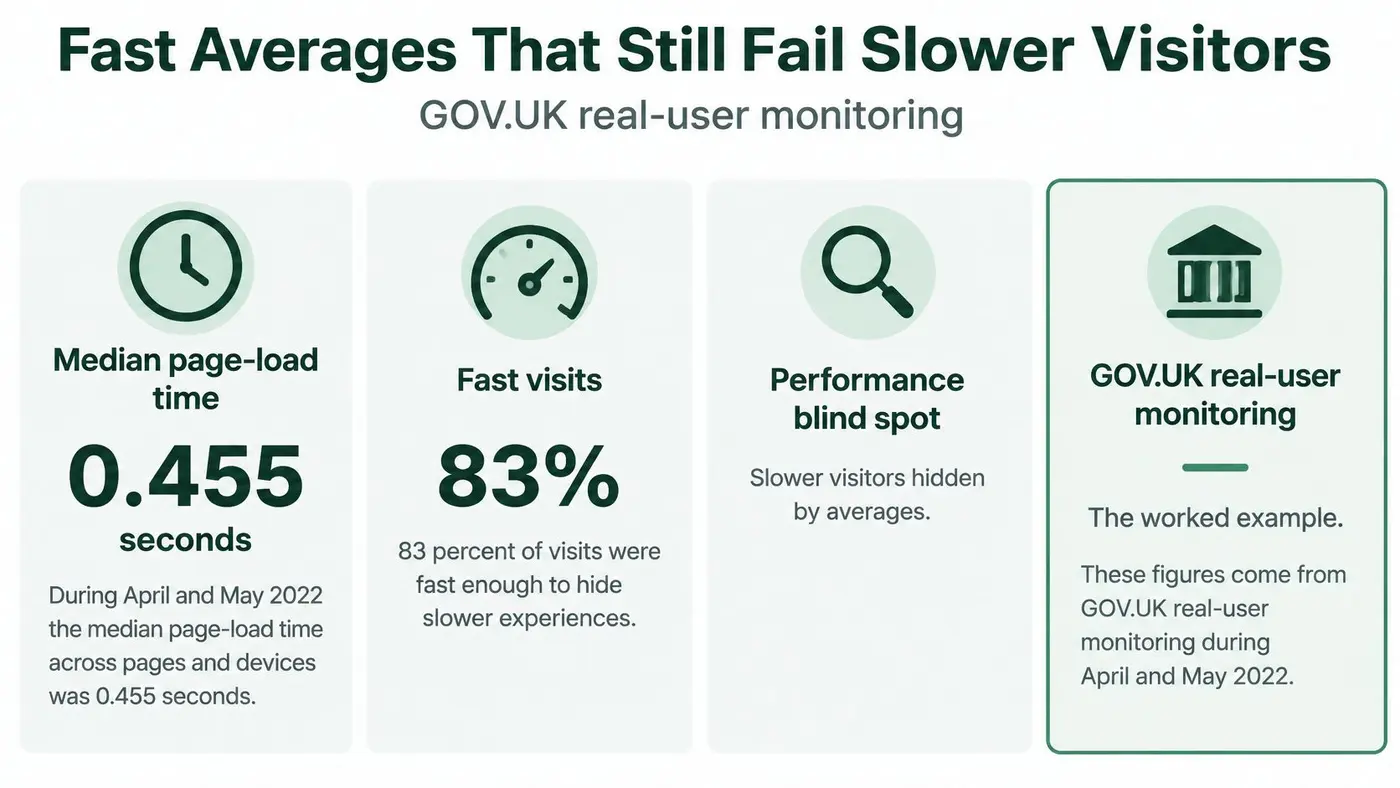
A fast median can conceal a frustrating experience. During April and May 2022, GOV.UK's real-user monitoring recorded a median page-load time of 0.455 seconds across pages and devices, while the slowest users waited as long as 2.35 seconds. The same account reported that 83% of visitors experienced a load classified as good under its cited threshold, and Android phones accounted for 36% of slow visits.
That's like judging a shop queue by the typical wait while overlooking customers stuck at a slower till. The aggregate result can be accurate and still be an inadequate basis for deciding what to fix.
Follow the slower journey
Say a shopper opens a product page on an Android phone over a constrained connection. The heading appears, but a large image continues loading, a review widget starts another request and the purchase controls aren't ready. A desktop tester on office Wi-Fi may never encounter the same delay.
Use real-user monitoring to separate experiences by device and, where available, connection conditions. Then inspect the affected journey in Chrome DevTools with network and CPU throttling. Laboratory testing helps reproduce a problem; it doesn't replace evidence from actual visitors.
Look for specific causes rather than treating the whole page as slow:
- Image weight: Serve appropriately sized product images instead of shrinking oversized files with CSS.
- Script execution: Defer non-critical JavaScript and remove tags that no longer serve a defined purpose.
- Rendering delays: Inspect blocking stylesheets and unnecessary work before the main content appears.
- Layout movement: Reserve space for images, banners and embedded content so controls don't shift during use.
Improve readiness, not just appearance
Server or edge caching and lean above-the-fold markup are useful controls, but confirm their effect on the affected visitors. Watch whether people can interact promptly, not merely whether the first content appears.
Typography also belongs in a performance review. Font Checker Pro's explanation of web safe typography for development teams can help teams consider reliable fallback choices alongside their visual requirements.
Use a Core Web Vitals optimisation workflow to organise ongoing checks. Keep load timing, layout stability and interaction delay visible separately rather than hiding them inside a single performance score.
Mobile Visits That Do Not Finish the Task
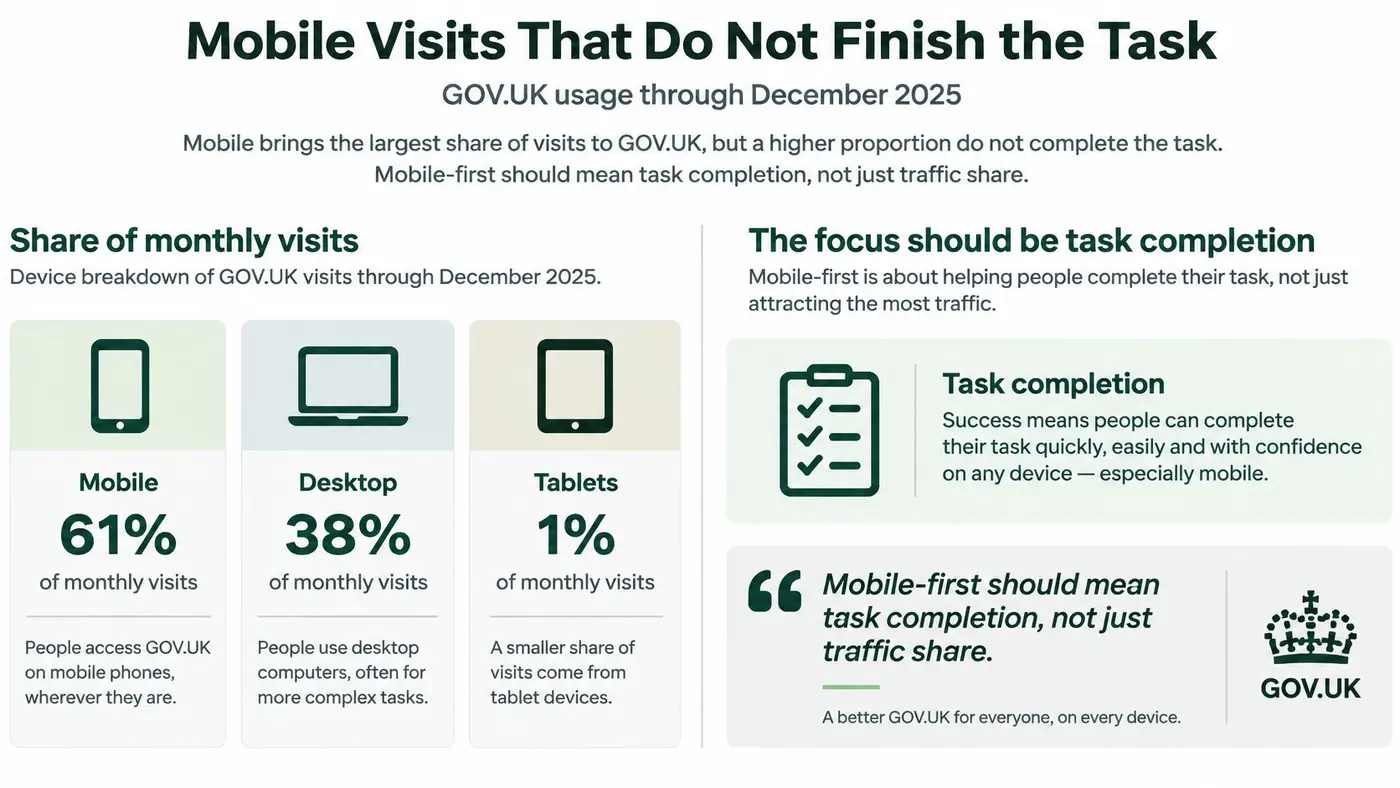
Mobile accounted for 61% of monthly GOV.UK visits by December 2025, compared with 38% for desktop and 1% for tablets, according to GOV.UK's account of usage in 2025. That's government-service traffic rather than a prediction of your store's audience, but it illustrates why device-specific journeys deserve attention.
A page can fit a narrow screen and still be difficult to use. Responsive appearance means the layout adapts; mobile task completion means someone can successfully search, compare, enter information and finish.
The device split below provides context for that distinction.
Separate the possible causes
When mobile completion is weaker, don't assume the purchase button needs a brighter colour. Investigate the competing explanations.
- Cramped presentation: Adjacent controls make selection awkward, or important text requires horizontal scrolling.
- Delayed response: A tap produces no immediate feedback, leaving the shopper unsure whether it registered.
- Form effort: Optional questions and unsuitable input types make entry unnecessarily laborious.
- Unclear hierarchy: Promotions appear before information needed to decide whether to buy.
- Desktop-derived structure: Filters, comparisons or account steps assume space and context that a phone doesn't provide.
A device compatibility review should include actual interactions, not just screenshots. Test the on-screen keyboard, expanded menus, validation messages and sticky elements together.
Compare outcomes beyond taps
For a navigation experiment, more menu opens may indicate curiosity or confusion. For checkout, extra clicks may mean users are correcting mistakes. Track checkout completion, revenue per visitor, average order value, form progression and abandonment at each step to understand what happens after the initial interaction.
This video offers another way to consider the relationship between interface choices and usability.
Test a clearer headline, a different call-to-action position, reduced navigation density or a shorter form against a specific task. Compare mobile and desktop results separately, including whether shoppers complete purchases rather than merely reach the basket.
Mobile-first doesn't mean mobile-only. It means refusing to average different device experiences into a verdict that hides a failure.
Check Your Own Site Before Fixing It
Create a baseline before changing the design. A small team needs a reproducible record of what fails, where it fails and who will repair it, not a sprawling collection of screenshots without decisions attached.
Run a task-based inspection
-
Scan representative templates. Use axe DevTools or WAVE on the homepage, a category page, a product page and the checkout entry. Record findings by template or shared component so a repeated navigation defect becomes a component repair, not a misleading pile of separate page problems. Output: an accessibility issue list grouped by implementation.
-
Walk the purchase path with the keyboard alone. Use Tab, Shift+Tab, Enter, Space and Escape as appropriate. Record unreachable controls, unexpected focus movement and any point where your position disappears. Output: a sequence of manual failures attached to named controls.
-
Reproduce a constrained mobile visit. Load the same path on a mid-range Android phone and use throttling to investigate delays. Record the slowest step and what the user cannot yet do there. Output: a reproducible performance finding with device and test conditions.
-
Inspect device-level progression. Pull analytics for the same journey and identify the step where each device group leaves. Check that event tracking works before interpreting missing events as abandonment. Output: a journey funnel separated by device.
-
Attach each defect to a shopper task. Classify it against a barrier such as difficult forms, unclear navigation or poor keyboard access. Describe the consequence in ordinary language, such as being unable to select a delivery option. Output: a prioritised task-and-defect register.
Keep manual findings visible
An automated pass doesn't establish usability. If the scanner accepts a menu but your keyboard walkthrough can't open its submenu, record a manual finding rather than dismissing the discrepancy.
Keep the baseline sheet short: defect, affected task, template, device, reproduction steps, owner and retest result. Store technical detail alongside it, but make the assignment itself clear enough that someone can begin work without another discovery meeting.
Baseline discipline: Preserve the original test conditions. A repair is easier to judge when another person can repeat the same journey and compare the result.
How to Repair Poor Web Design in Order
Repair the essential journey before commissioning a full rebrand. Work through a defined path so engineering, design and merchandising can verify the same outcome.
The visual below summarises the iteration loop; the detailed sequence separates the implementation work.

Restore access before refining presentation
-
Choose the main task on mobile and desktop. Define its start, successful finish and observed stopping point. For a shop, this might be selecting a product option and completing a purchase. Avoid the slip of choosing a homepage makeover because stakeholders see that page most often.
-
Make controls operable and identifiable. Restore visible focus, logical keyboard order and accessible names, roles and states. Prefer native buttons and form controls where they fit the interaction. Styling a
divto resemble a button doesn't automatically give it button behaviour. -
Repair the information structure. Arrange headings logically, write links that identify their destination and give informative images appropriate text alternatives. Keep decorative images from adding unnecessary screen-reader output. Don't select heading levels merely to obtain a particular font size.
-
Correct contrast and uncontrolled motion. Check text, controls and their important states against the applicable WCAG requirements. Provide pause or stop controls where needed and respect reduced-motion preferences. Testing only the default button state can miss an unreadable error or selected state.
Remove effort and verify the result
-
Reduce unnecessary decisions and entry. Keep content that supports the task, remove fields without a clear operational need and review verification patterns that block legitimate users. Preserve helpful delivery and returns details. Minimalism becomes another defect when shoppers must hunt for essential information.
-
Target the slow visitor group. Use the baseline to choose smaller image assets, defer non-essential scripts and remove redundant third-party tags. Check the actual phone journey after deployment. Don't assume a faster desktop development environment proves that the affected mobile experience has improved.
-
Retest access and business outcomes. Repeat keyboard and screen-reader checks, enlarge text and verify that errors remain understandable. Compare completion, revenue per visitor and order value by device. Declaring success from desktop clicks alone leaves the main question unanswered.
Book a follow-up audit rather than treating launch approval as permanent sign-off. New banners, product widgets and component changes can introduce defects after the original repair, so give ongoing checks an owner.
Not every issue needs an experiment. Repair a confirmed access failure directly; use controlled tests for competing usable designs where the better choice remains uncertain.
Test the Next Change Before You Redesign
Don't commission a visual refresh until you've tested a high-friction element against completion and revenue. A bounded change is easier to interpret than a replacement page that alters the headline, navigation, imagery and form simultaneously.
Choose something tied to an observed problem: a headline that explains the offer, lower content density around the purchase decision, a shorter enquiry form or a call to action that states what happens next. Write the hypothesis in customer terms, not aesthetic terms.
Set the decision rule before launch
A practical hypothesis might be that removing an unnecessary enquiry field will help visitors submit a valid request without reducing lead usefulness. Define the target completion event, the business guardrail and the device groups before starting.
- Primary outcome: Does the intended step finish more successfully?
- Commercial guardrail: Do revenue per visitor, order value or lead usefulness remain acceptable?
- Access guardrail: Can keyboard and screen-reader users still complete the variant's journey?
- Device verdict: Does each device group support the claimed improvement, or is the result mixed or inconclusive?
Use a website A/B testing process that distinguishes evidence from a promising early fluctuation. A variant should win only when it improves the target step on each device without an accessibility regression; otherwise, retain the original or investigate the mixed result.
Keep the experiment proportionate
At Otter A/B, our visual A/B testing supports unlimited variants and precise traffic splits, with a one-line install and no developer handoff for each visual change. That gives teams a way to compare specific alternatives without turning every copy or layout question into a redesign project.
Keep the scope narrow even when the tool permits more variants. The useful result is an understandable decision about a customer task, not just a new page that stakeholders prefer.
Otter A/B helps you compare headlines, calls to action and layouts against completed goals and purchase outcomes. Visit Otter A/B to start free with no credit card required, and test a focused change on the page you already suspect is losing customers.
Stop guessing
Ready to start testing?
Set up your first A/B test in under five minutes. No credit card required.
- 14-day free trial
- No credit card required
- Cancel anytime