Branches in GitHub: A Practical Guide for Teams in 2026
Learn what branches in GitHub are, why they matter, and how to use them. Our guide covers core commands, workflows like GitFlow, and best practices for teams.
You're about to change a headline, fix a checkout bug, or try a new layout. The code looks small. The risk doesn't. One careless push to the wrong branch and you can break the live site, block another developer, or muddy a release that was stable an hour ago.
That's why branches in GitHub matter so much. They aren't just a Git feature for developers who like the terminal. They're a practical safety net for anyone shipping changes to a shared product. A branch gives you a separate place to work so the stable version of the project stays untouched until your change is ready.
That isolation is what makes fast teams possible. Developers can build features in parallel. Designers and marketers can support A/B testing without touching production code directly. Reviewers can inspect changes with context instead of guessing what happened. Good branch habits protect business value because they reduce accidental damage while keeping work moving.
Introduction Why Branches Are Your Safety Net
A branch is the closest thing software teams have to a rehearsal space. You can test, rewrite, break things, and fix them again without affecting the version users rely on.
GitHub's own documentation describes branches as central to collaboration because they let developers create independent lines of development for features and testing without impacting the main project, in GitHub's branch documentation. That's the practical reason branches in GitHub show up in nearly every healthy workflow. They let the team move quickly without treating the production codebase like a sandbox.
Why teams rely on them
Branches solve several problems at once:
- Safety for production: You can change code without touching the deployed version.
- Parallel work: Two people can work on different tasks at the same time.
- Clear review paths: Pull requests become easier to understand when each branch has one purpose.
- Experimentation: Teams can trial ideas such as alternative headlines or layouts without mixing those changes into unrelated work.
For growth work, that last point matters more than many teams realise. If you're testing a landing page variant, you want the experiment isolated. The branch becomes the container for that idea.
Practical rule: If a change would be awkward to explain in one sentence, it probably shouldn't live in the same branch as something else.
What a branch protects you from
The biggest risk isn't only broken code. It's confusion.
A messy branching habit creates hidden costs:
- Merged changes with unclear intent
- Conflict-heavy pull requests
- Long-lived work that drifts away from the current codebase
- Team members stepping on each other's changes
Branches work best when they're treated as communication tools, not just technical objects. A well-named branch, scoped to one job, tells the rest of the team what's happening before anyone opens a diff.
The Core Concept of a GitHub Branch
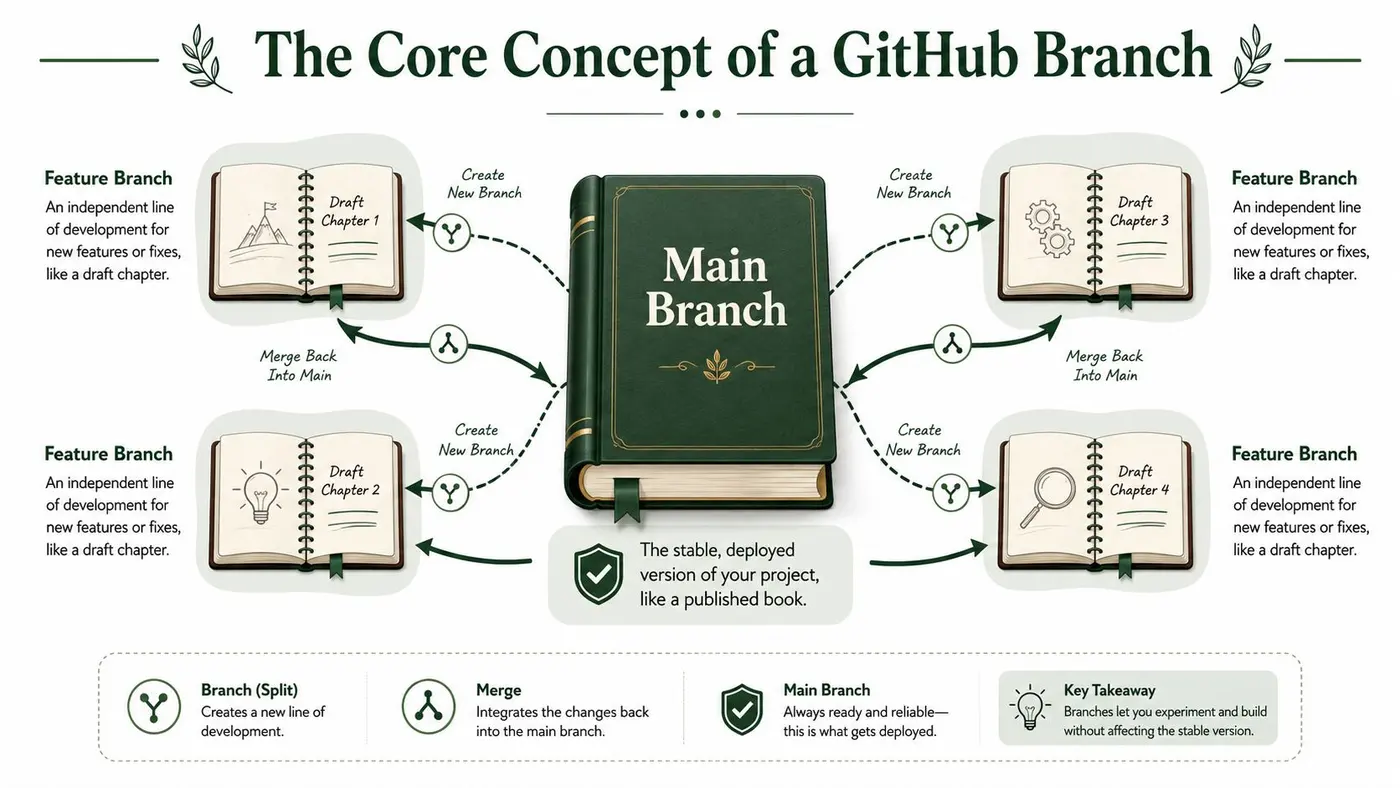
A GitHub branch gives your team a safe place to change code without putting the shared baseline at risk. main holds the version everyone depends on. A branch lets you work on a feature, bug fix, or experiment from that known starting point, then decide later whether it should become part of the product.
That matters for more than code hygiene. In a team setting, a branch creates a boundary around one piece of work. Reviewers can see the purpose of the change. Product and QA can follow progress. If you are testing a new signup flow or an A/B variant, the branch keeps that work isolated until the team is ready to merge or discard it.
Main is the source of truth
In many repositories, the default branch is main. Teams treat it as the trusted line of development, or at least the closest thing to it. Some teams keep main always deployable. Others use it as the integration branch and promote releases from there. Both approaches can work, but the team needs one clear rule about what main represents.
That shared meaning is the point. If one developer treats main as stable and another treats it as a scratchpad, pull requests become harder to review and releases become harder to predict.
What happens when you branch
A branch is not a second repository, and it is not a full copy of the project. It is a pointer to a commit history that can now move independently.
Here is the usual flow:
- Start from
main - Create a branch for one job
- Make commits on that branch
- Open a pull request
- Merge back into
mainif the change is approved
In Git, that often looks like this:
git switch main
git pull origin main
git switch -c feat/update-homepage-cta
Those commands do three practical things. They move you to the shared baseline, update it, and create a new branch from the latest commit. Starting from fresh main reduces the chance that your branch drifts before anyone reviews it.
A branch is a controlled workspace for one change, with a clear path back into shared code.
Why this model matters
Once a team understands branches this way, Git becomes easier to use well. You stop asking, "Should I branch for this?" and start asking, "What is the cleanest unit of work here?"
Use a branch to:
- Keep one change grouped together
- Give reviewers a pull request with a single purpose
- Test an idea without mixing it into unrelated work
- Protect the shared branch while work is still incomplete
There is no single branching model that fits every team. A two-person startup may keep things simple with short-lived branches off main. A larger product team may add release branches or experiment branches for controlled rollouts. The constant part is the same. Branches are not only a Git feature. They are a team agreement about how work stays clear, reviewable, and safe to change.
Essential Branching Actions Step by Step
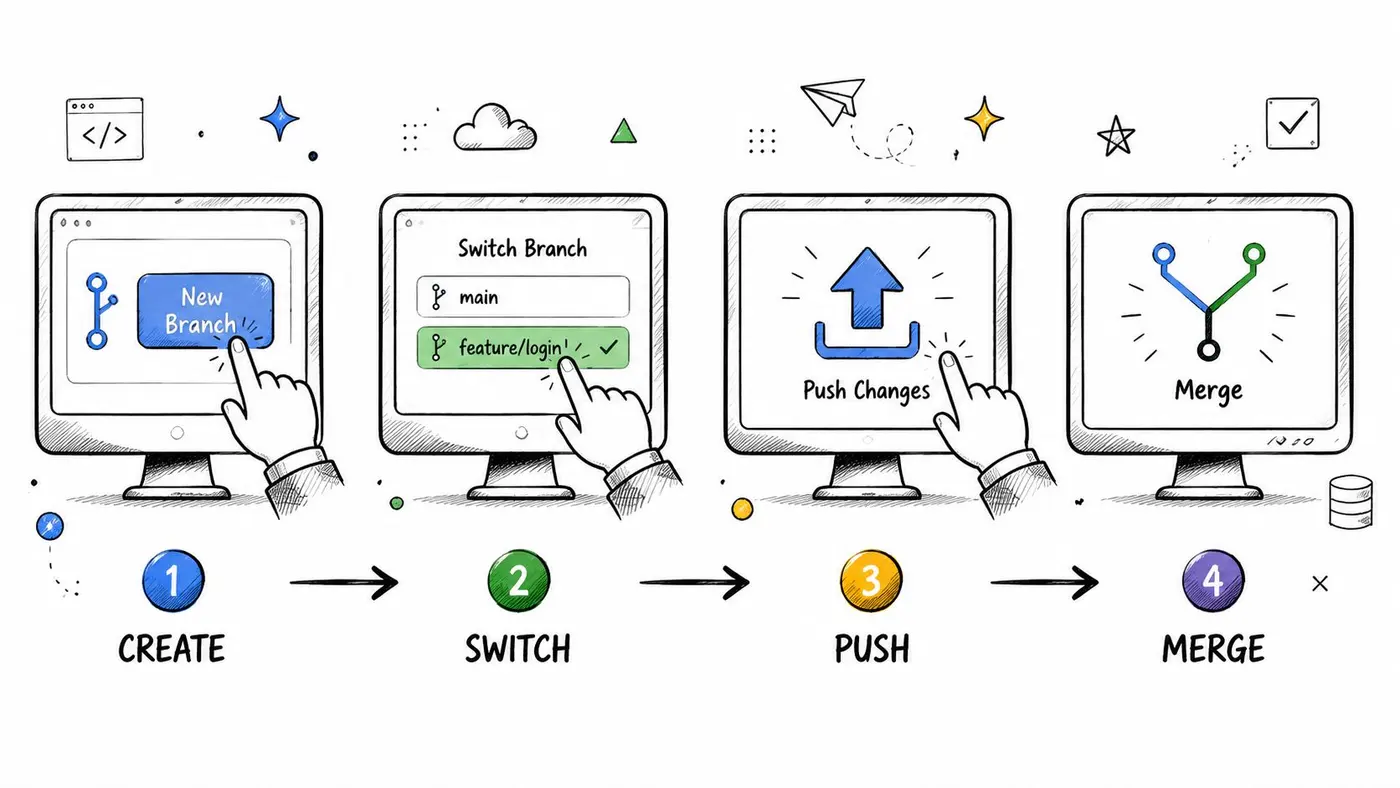
Most branch workflows come down to four actions. Create a branch, switch to it, push it to GitHub, and open a pull request. You can do all of that from the terminal or mostly through the GitHub interface. It's worth knowing both.
Create a new branch
Start from an up-to-date main. That reduces avoidable conflicts later.
In Git
git switch main
git pull origin main
git switch -c feat/update-homepage-cta
In GitHub UI
- Open the repository.
- Click the branch selector near the top left above the file list.
- Type the new branch name.
- Choose the option to create the branch from
main.
Use a name that explains the work. If someone sees the branch in a pull request list, they should know its purpose immediately.
Switch between branches
You'll often need to move between active work and the stable codebase.
In Git
git switch feat/update-homepage-cta
git switch main
In GitHub UI
The web interface lets you browse branches, but switching for local development happens in your Git client or terminal. In GitHub Desktop, you can use the current branch dropdown and choose the branch you want.
Commit your changes locally
A branch without commits is just a named idea. Once you've edited files, save that work in focused commits.
In Git
git add .
git commit -m "Update homepage CTA copy"
Good commits are small and readable. If you changed copy, layout, and analytics tracking, consider whether that should really be one branch.
Push the branch to GitHub
Your local branch exists only on your machine until you push it.
In Git
git push -u origin feat/update-homepage-cta
The -u sets the upstream branch so future pushes are simpler.
In GitHub UI
You can't push from the web interface itself if the branch only exists locally. If you created the branch in GitHub first, then local tools like GitHub Desktop, VS Code, or the terminal will sync your commits back to the remote branch.
A useful habit is to push early if you're collaborating. That gives teammates visibility and gives you a remote backup.
Here's a short walkthrough if you want to see the workflow in action:
Open a pull request
The pull request is where branch work becomes team work. It gives reviewers a diff, a discussion thread, and a safe merge path.
In GitHub UI
- Go to the repository after pushing your branch.
- Click the prompt to compare and create a pull request, or open the Pull requests tab and start a new one.
- Set the base branch to
main. - Set the compare branch to your feature branch.
- Add a useful title and description.
- Request review.
In Git with GitHub CLI
gh pr create --base main --head feat/update-homepage-cta --title "Update homepage CTA copy" --body "Refines CTA text for the homepage hero section."
Before you merge
Don't treat “it works on my machine” as the finish line. Check a few things first:
- Review the diff: Make sure only relevant files changed.
-
Pull latest changes: If
mainmoved on, update locally before merging. - Resolve feedback: Use the pull request conversation to close open questions.
- Confirm tests and checks: If your team uses CI, wait for green checks.
A clean branch lifecycle is simple, but it's not casual. The steps exist to reduce ambiguity. That's what makes branches in GitHub useful for more than just solo coding.
Common Branching Strategies for Teams
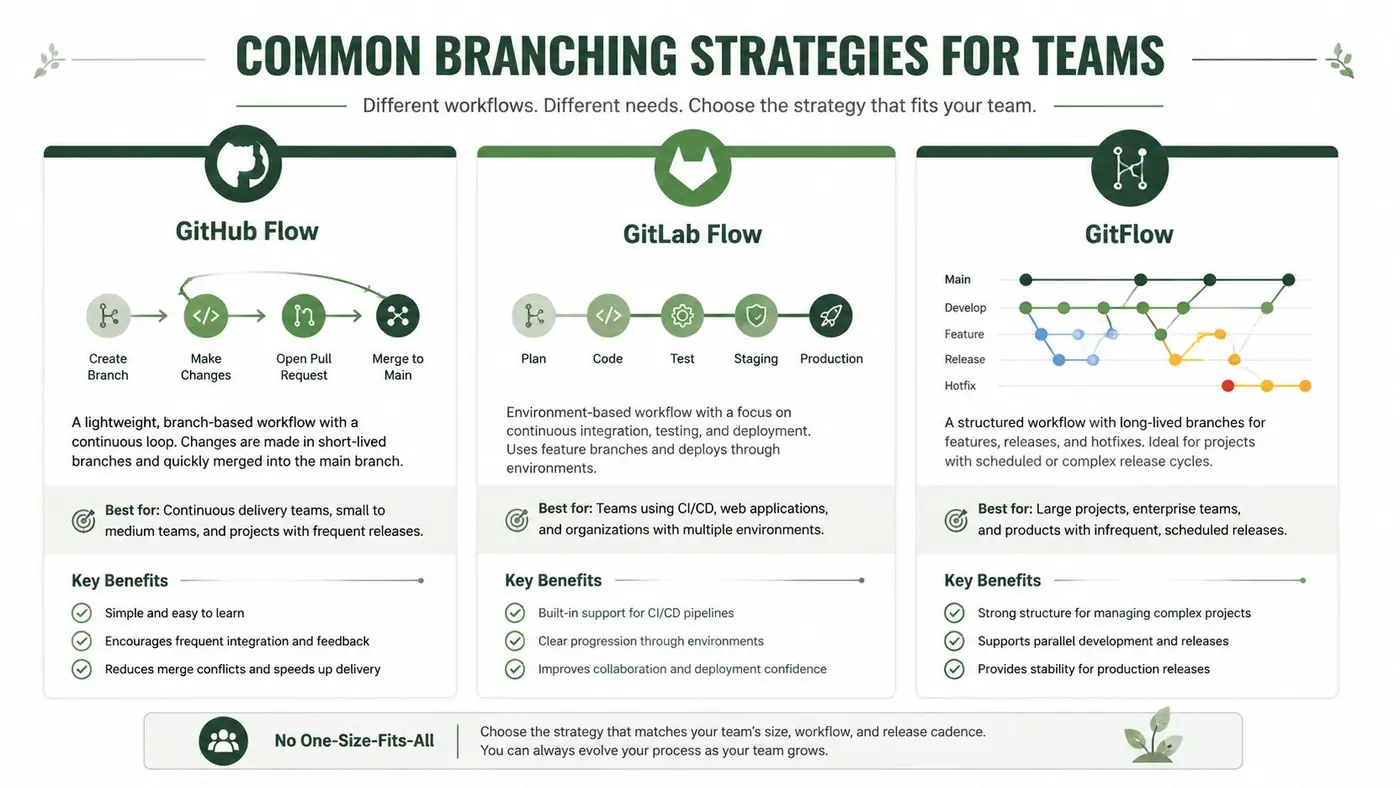
A branch by itself is just a tool. The strategy behind it decides whether your team ships smoothly or spends half the week untangling process.
The right workflow depends on release cadence, team size, compliance needs, and how often people need to collaborate on the same files. For A/B testing and iterative product work, short, single-purpose branches are especially useful. UK Government Data Science standards recommend short branches with a single purpose and kebab-case naming such as feat/update-homepage-cta, described in this GitHub workflow video reference.
A quick comparison
| Strategy | How it works | Where it fits | Trade-offs |
|---|---|---|---|
| Feature branch workflow | Branch from main, open PR, merge when ready |
Most web apps and product teams | Simple, but depends on good review discipline |
| GitFlow | Uses feature, release, and hotfix branches with more ceremony | Teams with scheduled releases and formal release management | More control, more overhead |
| Trunk-based development | Developers integrate to main very frequently using very short-lived branches |
High-velocity teams with strong CI and test automation | Fast feedback, but weak automation makes it painful |
Feature branch workflow
This is the default recommendation for many teams because it's easy to teach and hard to misuse when the team follows the basics.
A typical pattern looks like this:
- One branch per piece of work: A bug fix, feature, or content experiment gets its own branch.
-
Pull request before merge: Nobody pushes straight to
main. - Short lifetime: Branches don't sit open for ages.
This works well for front-end teams, product squads, and marketing engineering work because changes stay isolated and easy to review.
GitFlow
GitFlow adds more structure. You typically have long-lived branches for production and development, plus dedicated release and hotfix branches.
That structure helps when releases happen on a schedule and the team needs stronger control over what goes into a release candidate. It can also help teams coordinating across multiple streams of work.
The downside is process weight. If your product deploys frequently, GitFlow can feel like using airport security to walk into your own kitchen.
Trunk-based development
Trunk-based development keeps developers close to main. Branches are very short-lived, and integration happens often.
This approach can be excellent for mature engineering teams with reliable tests, fast CI, and disciplined review habits. It reduces painful merge conflicts because nobody drifts away from the current codebase for long.
It's a poor fit if your checks are unreliable or slow. In that case, frequent integration turns into frequent blockage.
If your pull requests stay small and your CI is trustworthy, simpler branching usually beats a complicated model.
Teams trying to speed up delivery without creating chaos should also look at workflow design beyond Git itself. This guide for faster app launches is useful because it connects developer productivity to release habits instead of treating branching in isolation. For a broader team process view, it also helps to review how branching fits into SDLC and Agile practice.
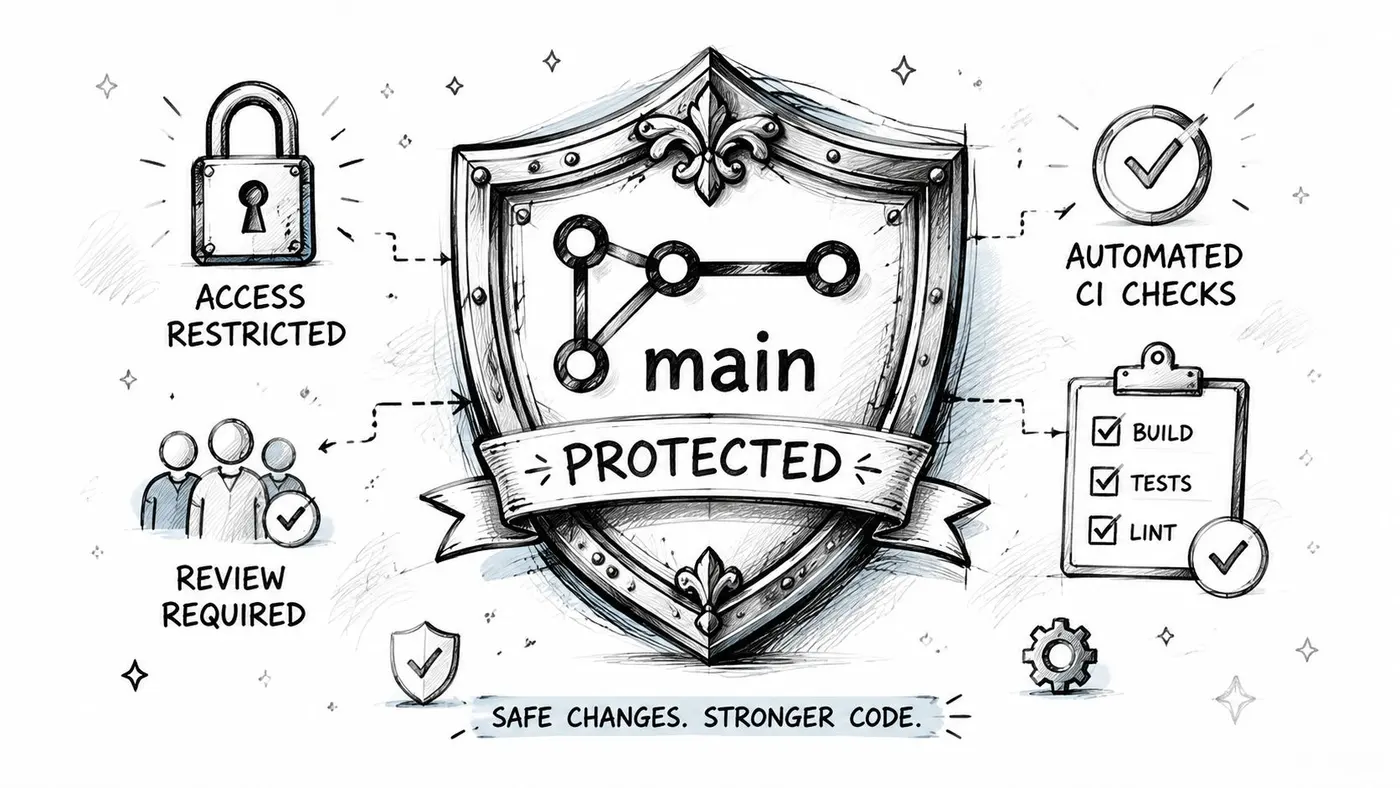
Using Branch Protection and CI Checks
A common failure pattern looks like this. A developer is in a rush, pushes straight to main, and a broken change slips into the branch everyone else depends on. Now the team is debugging, product is asking for updates, and a small shortcut has turned into release risk.
Branch protection exists to stop that class of mistake before it reaches customers or internal users. In team terms, it turns branch rules into an agreement GitHub can enforce.
What branch protection should usually enforce
Start with a small ruleset that protects delivery without drowning the team in ceremony:
-
Require pull requests: Block direct pushes to
main - Require review: At least one reviewer approves the change
- Require status checks: Tests, linting, and build jobs pass before merge
- Require conversation resolution: Open review comments get resolved
- Require branch to be up to date before merging: Useful when your codebase changes fast
That setup does more than protect code quality. It protects business value. A passing pull request reduces the chance that a half-finished feature, broken checkout flow, or risky config change lands in the branch tied to deployment.
How to set it up in GitHub
In your repository:
- Open Settings
- Select Branches
- Click Add branch protection rule or create a Ruleset, depending on your GitHub plan and UI
- Enter
mainas the branch pattern - Turn on the rules your team agreed to
- Choose the required status checks from your CI provider
- Save the rule
If you use GitHub Actions, the checks usually appear after the workflow runs on a pull request. A simple workflow might look like this:
name: ci

on:
  pull_request:
    branches: [main]

jobs:
  test:
    runs-on: ubuntu-latest
    steps:
      - uses: actions/checkout@v4
      - uses: actions/setup-node@v4
        with:
          node-version: 20
      - run: npm ci
      - run: npm run lint
      - run: npm test
      - run: npm run build
Once those jobs report back to GitHub, you can mark them as required in the branch rule.
Why protection and CI work together
Branch protection is the gate. CI provides evidence.
That distinction matters. Reviewers should spend their time on logic, edge cases, security concerns, and whether the change matches the intent of the ticket. A machine is better at checking formatting, unit tests, and whether the app still builds.
There is a trade-off. Strict rules improve safety, but slow or flaky checks create frustration fast. Teams doing trunk-based work often need very fast CI because they merge often. Teams with longer-lived branches may accept heavier checks before merge, especially if the release process has more approvals. The right setup depends on how often you deploy, how expensive failure is, and how reliable your pipeline is.
Branch protection also helps with work beyond ordinary feature delivery. If your team runs A/B tests, experiments on pricing, or staged rollouts, protected branches create a cleaner handoff from development to release. That matters when engineers, product managers, QA, and operations all need confidence in what is about to ship. It helps to align your rules with a clear understanding of what a deployment involves for a software team.
Review habit: Ask reviewers to focus on risk, intent, and maintainability. Let CI handle routine checks.
If your pipeline is slowing reviews down, these TekRecruiter pipeline optimization tips are a useful companion. They focus on keeping CI/CD practical enough that developers trust it and use it.
The Art of Merging and Resolving Conflicts
A merge conflict doesn't mean Git is broken. It means two lines of work touched the same area and Git needs a person to decide what the final version should be.
That's normal. It happens when two branches edit the same line, the same block, or nearby code in incompatible ways. The mistake isn't having a conflict. The mistake is panicking and clicking through it without understanding the result.
Reduce conflicts before they happen
Teams prevent many conflicts with discipline, not tools.
A few habits work well:
- Keep branches short-lived: The longer a branch stays open, the more the main codebase moves away from it.
-
Pull changes regularly: Don't wait until the day of the merge to see what changed on
main. - Scope branches tightly: One purpose per branch means fewer overlapping edits.
- Communicate early: If two people are changing the same component, they should know that before Git does.
Resolve conflicts locally
A reliable local workflow looks like this:
- Switch to your feature branch
- Fetch the latest remote changes
- Rebase or merge from
main - Open the conflicted files in your editor
- Choose the correct final content
- Mark the files resolved
- Continue the rebase or complete the merge
- Run tests and review the diff
Example commands:
git switch feat/update-homepage-cta
git fetch origin
git rebase origin/main
If Git stops with conflicts, open the file and you'll see markers like these:
<<<<<<< HEAD
Current branch content
=======
Incoming content from main
>>>>>>> origin/main
What to do inside the editor
In VS Code and similar editors, you'll usually get buttons like Accept Current Change, Accept Incoming Change, Accept Both Changes, or Compare Changes.
Don't choose based on convenience. Choose based on intent.
- If your branch version is correct and
mainchanged something unrelated nearby, keep your version. - If the branch and
mainboth contain useful edits, combine them manually. - If the incoming change makes your branch obsolete, accept the incoming version and adjust your work.
After editing, save the file and continue:
git add path/to/file
git rebase --continue
If you were merging instead of rebasing, you'd commit the merge after resolving the files.
The fastest conflict to solve is the one you created while the change is still fresh in your head.
A practical mindset
Conflict resolution is part of release discipline, not a sign of failure. Teams that handle it well usually have a healthy view of delivery overall. That's why it often overlaps with responsibilities seen in release management roles, where coordination matters as much as code.
When you finish resolving a conflict, review the final diff carefully. The conflict markers may be gone, but logic errors can still slip in if you merged the text without checking the behaviour.
Branch Naming Conventions and Cleanup
A branch name is a tiny project brief. It tells the team what's being changed, why it exists, and often where the work belongs in the backlog.
Bad names create friction. test-branch, john-work, and new-stuff force everyone else to open the branch or PR to understand it. Good names remove that extra step.
Naming patterns that work
Keep names short, specific, and consistent.
Useful examples:
-
Feature work:
feat/update-homepage-cta -
Bug fixes:
fix/cart-tax-rounding -
Hotfixes:
hotfix/payment-error-copy -
Ticket-linked work:
feature/2.x-123-new-feature
Different teams prefer different prefixes, but the pattern matters more than the exact wording. Consistency is what makes scanning easy.
Cleanup is part of the workflow
Repositories get noisy when merged branches hang around forever. GitHub recommends enabling automated deletion for stale branches that haven't received any commits in the last three months, and Hackney Council standards require automated deletion for merged head branches, as described in GitHub's guidance on viewing and managing branches.
That's more than tidiness. It keeps the branch list focused on active work.
To enable automatic deletion in GitHub:
- Open the repository
- Go to Settings
- Find the Pull requests section
- Enable automatic deletion for merged branches
Good naming and cleanup solve the same problem. They reduce cognitive load. When the repository only shows clear, current branches, the team spends less time decoding process and more time shipping.
Frequently Asked Questions About GitHub Branches
Some branch questions come up repeatedly because the answer isn't obvious until you've been bitten by the workflow once.
Can you create a private branch in a public repository
No. A public repository doesn't support private branches. Access is effectively repository-wide, so if the repository is public, its branches are public too. This confusion comes up often in the GitHub Community discussion about private branches in public repositories.
If you need to isolate sensitive work, use a private repository, a private fork where appropriate, or remove sensitive material from the experiment entirely before it enters a public codebase.
What should you do with experimental branches that won't be merged
Don't leave them hanging around forever just because the work might be useful later.
A practical approach is to preserve the useful context, then remove the live branch. One common pattern is:
- Tag the experiment descriptively: Keep a reference to the state you may want to revisit
- Document the outcome: Add a note in the issue tracker or pull request
- Delete the branch: Avoid clutter in the active branch list
That advice reflects a long-standing practice discussed in this Stack Overflow thread on experimental non-merged Git branches.
Should branches stay open while a task keeps changing
Usually, no.
If the scope keeps growing, the branch stops being reviewable. Split the work. A branch should tell a single story. If it starts telling three stories at once, reviewers miss things and merge risk goes up.
Is there one best branching model
No. There's a best fit for your team right now.
A startup shipping daily, a public-sector platform with strict controls, and an agency managing client experiments won't all branch the same way. The useful question isn't “What's the most advanced workflow?” It's “What workflow helps this team ship safely and understand what changed?”
If your team uses branches to ship page changes, test variants, or trial new layouts, Otter A/B gives you a lightweight way to turn those ideas into structured website experiments. It's a practical fit for teams that want cleaner experimentation without adding heavy process to everyday delivery.
Stop guessing
Ready to start testing?
Set up your first A/B test in under five minutes. No credit card required.
- 14-day free trial
- No credit card required
- Cancel anytime