Google Shopping Categories: The Definitive 2026 Guide
Master Google Shopping categories with our 2026 guide. Learn to find IDs, map products on Shopify & WooCommerce, and optimise feeds for higher conversions.
You've cleaned up titles, fixed GTIN gaps, pushed better images into the feed, and the campaigns still feel blunt. Spend goes out. Clicks arrive. Conversions don't follow in the way they should.
A lot of teams miss the same hidden lever: Google Shopping categories. Not because the field is obscure, but because it looks administrative. It isn't. Category mapping sits underneath how Google interprets product intent, how campaigns group inventory, and how cleanly your traffic lines up with the page experience after the click.
If you're working in Shopify, WooCommerce, or Webflow, this gets even messier. The platform app or plugin often handles the export, but it doesn't make the strategic decision for you. Someone still has to decide whether a product belongs in the broad bucket, the specific branch, or a custom internal grouping via product type. That choice affects feed quality, reporting clarity, and ultimately what kind of shopper you pay to attract.
Why Google Shopping Categories Are Critical for Performance
If a Shopping account has decent products, solid pricing, and sensible creative assets but still attracts low-intent traffic, I check categorisation early. It's one of the fastest ways to find structural feed problems that don't look obvious in the ads interface.
Google is clear that merchants should use one category that best describes the product, choose the most specific category possible, and use the latest taxonomy version. Google also states that category choice affects Shopping matching and campaign bidding, and that the category should reflect the product's main function, not a secondary use, in Google Merchant Center guidance.
That changes how you should think about the field. This is not a label for internal neatness. It's not there to satisfy a spreadsheet. It's a signal that helps Google decide what a product is, where it belongs, and how it should be treated in Shopping systems.
Where teams go wrong
Many retailers map categories at collection level and leave it there. That works until the collection contains edge cases, bundles, accessories, refills, or variants with a different primary use. Then relevance slips.
Common failure patterns look like this:
- Broad categorisation: A specialist product gets shoved into a parent category because it's quicker.
- Secondary-use mapping: A product is categorised by what it can also do, not what it primarily is.
- Legacy feed logic: Old mappings survive multiple site rebuilds and no one revisits them.
Practical rule: If the category choice feels “good enough”, it usually isn't specific enough for a competitive feed.
Why this affects revenue, not just compliance
When categorisation is sloppy, the problem shows up downstream. Search matching gets looser. Product groups become harder to manage. Bidding logic starts working with blurred inputs. Then the landing page has to rescue traffic quality that the feed should have filtered earlier.
That's why I treat category mapping as both a feed optimisation task and a conversion rate optimisation task. Better classification won't fix a weak product page. But it does improve the odds that the person arriving there wanted that type of product in the first place.
Understanding the Google Product Taxonomy Structure
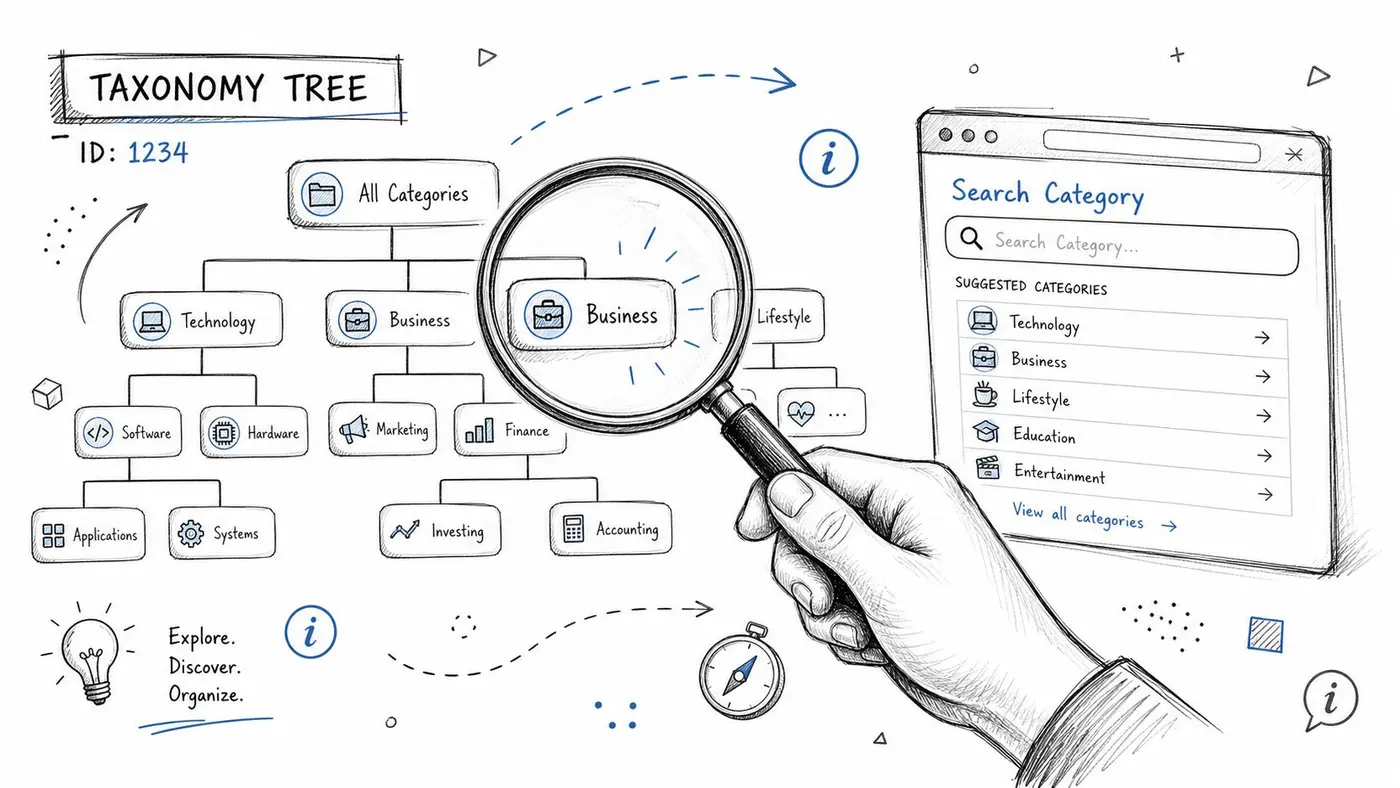
The taxonomy is easier to work with once you stop thinking of it as a flat list. It's a tree. At the top are broad parents. Under them sit narrower branches. Under those, very specific product definitions.
In the current Google ecosystem, the taxonomy contains roughly 6,000 categories and is described in industry guidance as spanning up to seven levels deep, with products submitted using either a numeric ID or the full text path in the feed, as outlined in this Google product taxonomy guide. That scale is exactly why casual guessing creates problems.
Think in parent and child categories
A broad node might be something like Apparel & Accessories. A child category under that might narrow to Shoes. A deeper branch then gets more exact.
The point of the hierarchy is precision. Google wants a single, best-fit category. The deeper you can go without becoming inaccurate, the cleaner your signal becomes.
Here's the practical mental model:
- Parent category: Useful for orientation, rarely precise enough on its own
- Mid-level branch: Often where teams stop too early
- Leaf-level category: Usually where the best mapping lives if the taxonomy supports it
Numeric ID or text path
You can usually submit the category in one of two ways:
| Format | Example style | When teams prefer it |
|---|---|---|
| Numeric ID | A category code | Better for feed rules and system-to-system consistency |
| Text path | Full category path | Better for human review and QA |
The choice is less about performance and more about operational clarity. If your merchandising team reviews exports manually, the text path is easier to audit. If your stack relies on transformations, IDs often reduce formatting mistakes.
Why taxonomy knowledge helps outside the feed
Teams often separate feed work from on-site optimisation. That's a mistake. The same discipline that produces cleaner category mapping also sharpens collection logic, faceted navigation, and structured data planning. If you're also working on optimizing Google rich snippets, this shared classification mindset helps keep your product data more coherent across search surfaces.
The best category mappers don't memorise the list. They learn how the tree thinks.
Don't rely on a frozen version
Google's taxonomy evolves. That matters because category quality decays unnoticed. A mapping that was acceptable in an old export can become less precise or invalid over time.
That's why category hygiene needs ownership. Someone on the team should be responsible for checking whether old mappings still represent the catalogue accurately.
How to Find the Correct Category for Your Products
Finding the right category is part search task, part judgement call. The goal isn't to find a category that sort of fits. The goal is to find the one Google would consider the clearest description of the product's primary function.
Method one using the official taxonomy file
Start with Google's current taxonomy file or the latest version your feed tooling supports. Search by the obvious product noun first. Then search by adjacent terms if the first result feels too broad.
For example, don't stop at “brush”, “lamp”, or “case”. Search for the commercial object the shopper would recognise. If a product has a material, style, or use-case modifier, ignore that at first and classify the core object.
Use this sequence:
- Find the product's plain-language noun
- Check the deepest relevant branch
- Compare nearby sibling categories
- Choose the category based on main function
The sibling comparison matters. A product may appear to fit two branches, but one usually reflects what the item fundamentally is, while the other reflects context, accessory status, or a secondary use.
Method two checking competitor mappings
You won't always see the exact feed field, but you can still learn a lot from how strong competitors classify similar products across their site architecture, page copy, and Shopping presence.
Look for:
- Category page naming: How do they organise comparable items?
- Product page terminology: What noun do they repeat consistently?
- Variant separation: Do they split the item into distinct product families or keep it under one umbrella?
This isn't about copying. It's about validating whether your own classification logic matches how the market understands the product.
If five competitors treat an item as a refill, accessory, or specialist subtype, and your feed treats it as the parent product, you're probably the one who's wrong.
Method three using feed tools for speed, then reviewing manually
Feed platforms, taxonomy look-up tools, and export apps can speed up discovery. They're useful for bulk suggestions and first-pass mapping, especially on large catalogues. But automatic suggestion should never be the final decision on its own.
What works well is a two-step workflow:
- Automation proposes
- A merchandiser or feed manager approves
This is especially important for products with bundles, niche use-cases, or overlapping category candidates. Those are the SKUs where performance gets distorted if you let convenience override precision.
Implementing Categories in Your Product Feed
Once you've chosen the right category, the next job is clean implementation. The feed attribute is google_product_category. Every platform-specific app, connector, or plugin is just a wrapper around that same basic idea.
If you understand the attribute at feed level, troubleshooting gets much easier.
What the field looks like
In a sheet-based feed, you'll usually have a column named google_product_category. The value is either the numeric category ID or the full category path, depending on how your feed is configured.
A simple CSV-style example looks like this:
| id | title | google_product_category |
|---|---|---|
| SKU-001 | Men's leather ankle boots | Apparel & Accessories > Shoes |
In XML, the same logic appears as a dedicated attribute on each item:
<g:google_product_category>Apparel & Accessories > Shoes</g:google_product_category>
That's the implementation in its simplest form. One product, one category value, one clear statement about what the item is.
Why implementation errors create downstream confusion
The feed can contain the right category decision and still fail because the export is messy. Wrong field names, inconsistent formatting, overwritten values from an app sync, or rule conflicts in a feed manager can all break good mapping work.
That's why I like to verify three things before blaming Google:
- Export layer: Is the field populated in the actual feed output?
- Transformation layer: Are rules changing it after export?
- Merchant Center layer: Is the submitted value the one Google received?
If you want a broader framework for feed work that supports campaign efficiency, this guide on how to maximize Google Shopping ROI is a useful complement to category hygiene.
Tie the feed back to measurement
Category work becomes much more valuable when you can trace product-group changes back to commercial outcomes. That's where clean analytics matters. If your tracking setup is shaky, you can't tell whether a category refinement improved traffic quality or merely shifted reporting. This walkthrough on conversion tracking with Google Analytics is worth using as a checkpoint before you judge feed changes too confidently.
Platform-Specific Mapping Guides for E-commerce
The right mapping method depends on your platform, the size of your catalogue, and who owns feed operations. Native tools are quicker to launch. Dedicated feed tools give you more control. Manual editing gives you precision but doesn't scale well.
Shopify
Shopify merchants usually start with the Google & YouTube sales channel or a feed app.
Native Shopify route
The native app is the fastest path for basic setup. It handles syncing, keeps the workflow inside Shopify, and reduces the number of moving parts.
Pros:
- Simple onboarding: Good for smaller catalogues or lean teams
- Centralised workflow: Product data stays close to the catalogue source
- Lower operational friction: Fewer external systems to maintain
Cons:
- Less granular control: Edge-case mapping can be awkward
- Rule logic can be limited: Especially when products need exceptions
- Bulk remediation can be slower: You may end up editing source data manually
For straightforward catalogues, this can be enough. For mixed catalogues with accessories, bundles, and specialist SKUs, teams often outgrow it.
Shopify feed apps
Dedicated feed apps are stronger when you need rules, overrides, supplemental logic, or market-specific handling. They're useful when a product collection contains inconsistent naming or when you need to map by tag, vendor, or metafield.
What usually works best is to store a deliberate category source in Shopify, then let the app export that field consistently.
If your catalogue pages also need stronger post-click performance, the bigger opportunity often sits in how collection and product templates guide users after they arrive. This practical look at Shopify conversion optimization pairs well with feed clean-up because better traffic and better page experience need to work together.
WooCommerce
WooCommerce gives you flexibility, but it also gives you more ways to create messy data.
Manual field mapping
Some merchants add category values directly at product level using custom fields or plugin-specific product settings. This gives precise control, especially for unusual catalogues.
Pros:
- High accuracy: Useful when each product needs careful handling
- Direct visibility: Easy to inspect item by item
- Good for niche stores: Works when volume is manageable
Cons:
- Time-heavy: Not ideal for large inventories
- Prone to inconsistency: Different team members may map differently
- Harder to maintain: Bulk updates can become repetitive
Feed plugins
A solid feed plugin is usually the better long-term option for WooCommerce. It lets you create export rules, map based on product categories or attributes, and override exceptions where needed.
The trade-off is setup discipline. If the plugin rules mirror a chaotic store structure, you'll automate chaos. Clean category mapping in WooCommerce starts with clean product data.
Webflow
Webflow is the platform where category mapping tends to need the most forethought. The CMS is flexible, but Google Shopping support usually relies on external feed generation, custom fields, or middleware.
CMS-first approach
For small catalogues, create a dedicated CMS field for the Google category value and maintain it manually. This keeps control close to the product content.
Pros:
- Transparent data model: Easy to see what each item is sending
- Good editorial control: Helpful for design-led teams
- Strong QA potential: Especially when product count is limited
Cons:
- Manual effort rises quickly: Scaling gets painful
- No safety net by default: Mistakes can persist unnoticed
- Needs process discipline: Webflow teams often lack feed-specific ownership
Middleware or feed connector approach
Once the catalogue grows, most Webflow stores need a connector or custom pipeline. That allows transformations, scheduled exports, and cleaner handling of required feed attributes.
The decision comes down to control versus complexity. If you sell a tightly curated line, manual may stay viable. If the range expands, invest in a feed layer before category debt piles up.
The best platform choice isn't the one with the most features. It's the one your team can maintain accurately every week.
Advanced Strategies for Conversion Rate Optimisation
Most category discussions stop at compliance. That leaves money on the table. The stronger use of Google Shopping categories is strategic segmentation.
A precise taxonomy gives you a cleaner starting point for traffic qualification. Then you can combine that with product_type, custom labels, stronger landing pages, and testing discipline to improve what happens after the click.
Use category for intent and product type for business logic
Google's taxonomy describes what the product is. Your product_type can describe how you want to organise and test it.
That distinction matters. The Google category should stay stable and accurate. Product type is where you can express merchandising nuance, such as material, audience, margin tier, seasonality, or collection logic.
A useful setup looks like this:
| Attribute | Best use |
|---|---|
| google_product_category | Standardised classification for Google |
| product_type | Your internal segmentation for reporting, testing, and campaign structure |
For creative testing, this becomes powerful. If a fashion brand is improving image quality or trying product to model workflows to present apparel more convincingly, category-level accuracy keeps those tests attached to the right product family rather than muddying results across unrelated items.
Test specificity where ambiguity exists
Some products sit close to two possible classifications. That's where controlled testing can help, provided both options are defensible and you don't violate Google's logic about primary function.
Examples of useful tests include:
- Broader versus narrower category mapping
- Different product_type structures for asset grouping
- Landing page alignment by category family
The key is restraint. Don't run category tests because the feed is uncertain. Run them when two valid options exist and you want to learn which framing attracts the better visitor.
Connect feed changes to on-site conversion behaviour
A cleaner category doesn't just change what query gets matched. It changes the expectation the shopper carries into the click. If the feed says one thing and the product page hierarchy, copy, and CTA sequence suggest another, conversion suffers.
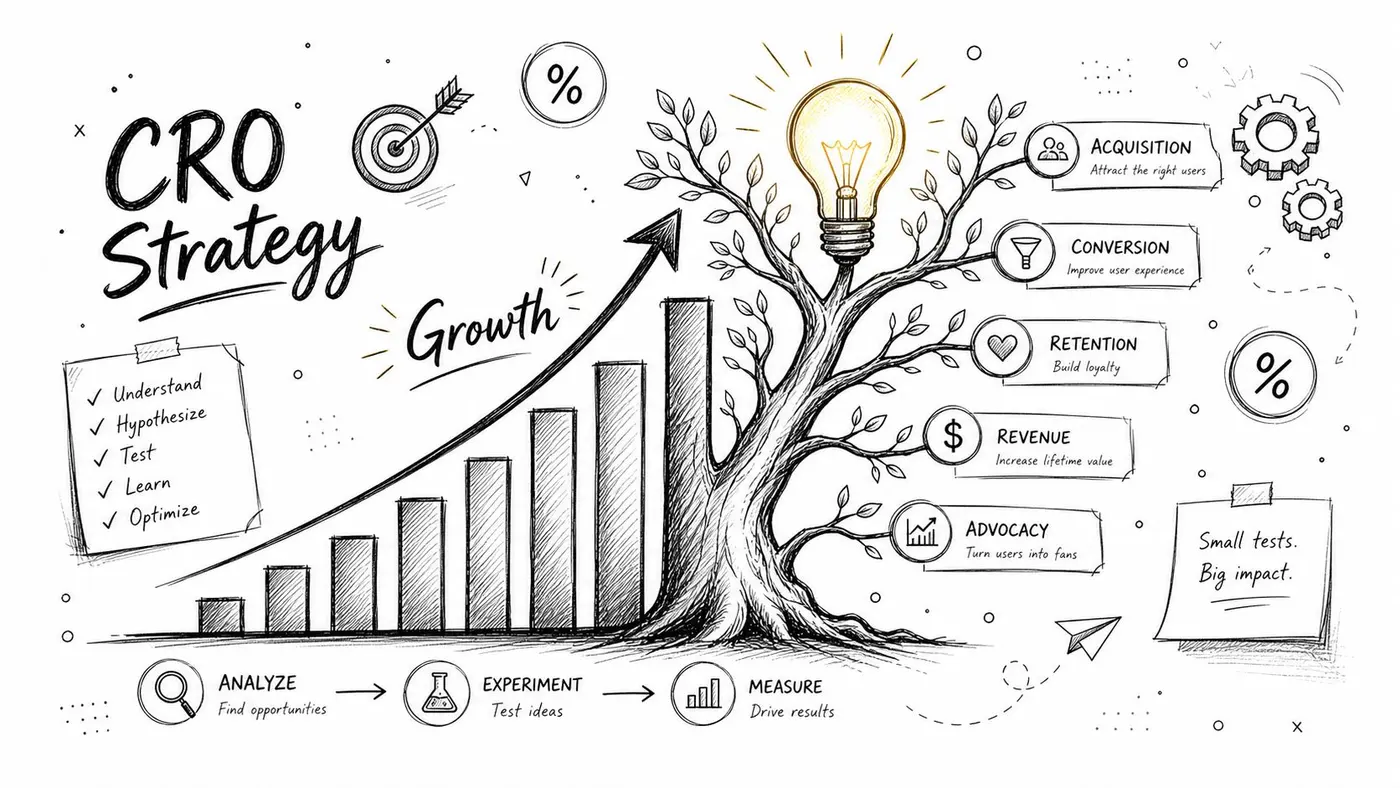
That's why category optimisation belongs inside a broader e-commerce conversion rate optimization workflow. Better pre-click qualification and better post-click continuity should be treated as one system.
Strong Shopping performance usually comes from message match. The category narrows intent before the title, image, and landing page finish the job.
Common Category Pitfalls and How to Fix Them
Most category problems aren't caused by ignorance. They're caused by shortcuts. A team inherits an old feed, trusts auto-classification too much, or assumes a close-enough category won't matter.
In the UK, that assumption breaks down quickly. Country-specific taxonomy handling matters, syntax matters, and Merchant Center diagnostics often flags incorrect mappings. Channable's UK-focused guidance also notes that merchants should align submissions with the UK English taxonomy context, submit either the numeric ID or the full path exclusively, include spaces around the > delimiters, and use product_type only when no predefined category precisely matches the product's function in this categorisation guide.
Common Google Shopping Category Errors and Solutions
| Common Pitfall | Symptom in Merchant Center | Solution |
|---|---|---|
| Using an outdated taxonomy version | Warnings, inconsistent mappings, or products classified in old branches | Recheck mappings against the latest taxonomy before publishing |
| Choosing a category that's too broad | Traffic looks loosely matched and product groups become hard to manage | Move to the most specific valid child category |
| Using both ID and text path together | Feed formatting issues or rejected values | Submit either the numeric ID or the full category path, not both |
| Incorrect path formatting | Feed errors caused by malformed category strings | Use the full path with spaces around > such as Apparel & Accessories > Shoes
|
| Mapping by secondary use | Products appear under the wrong intent context | Categorise by the product's main function |
| Using product_type as a replacement | Incomplete or weak standard classification | Keep google_product_category as the core field and use product_type as support |
| Copying US-oriented mappings blindly | Local mismatch and approval friction in UK workflows | Validate the mapping against the UK setup and current taxonomy handling |
The multiple-category dilemma
A product can feel like it belongs in several places. That doesn't mean you should try to force all of them into the feed.
Pick the one that answers the question, “What is this item first?” If a bamboo toothbrush is eco-friendly, that may shape your merchandising and your product_type value. It still belongs under the closest toothbrush-related Google category, not under a sustainability concept.
What fixes usually work fastest
When I'm cleaning up a category set, I don't start with every SKU. I prioritise:
- Best sellers and highest-spend products
- Products with obvious ambiguity
- Merchant Center errors and warnings first
- Collections with mixed product functions
That order gives you the fastest path to impact and the clearest QA process.
Don't debug the whole catalogue at once. Fix the products that spend, the products that fail, and the products that confuse the taxonomy.
Auditing and Maintaining Your Category Health
Good category mapping decays unless someone owns it. New products get added. Old rules linger. Platform apps change behaviour after updates. Before long, a once-clean feed drifts back into inconsistency.
A simple maintenance rhythm works better than occasional large clean-ups.
A practical audit routine
Use this checklist regularly:
- Check Merchant Center diagnostics: Review disapprovals, warnings, and products needing attention
- Sample recent product launches: Make sure new SKUs follow the same mapping logic as older ones
- Review top-spend products manually: These deserve direct validation, not blind trust in automation
- Inspect category exceptions: Bundles, accessories, and seasonal products often need closer judgement
- Verify taxonomy freshness: Confirm your mappings still align with the latest supported version
The teams that manage Google Shopping categories well don't treat them as setup work. They treat them as catalogue governance. That's what keeps feeds compliant, campaigns easier to manage, and traffic closer to buyer intent over time.
If you're improving Shopping feed quality and also want to test what happens after the click, Otter A/B gives your team a lightweight way to run experiments on headlines, CTAs, layouts, and revenue-driving page elements without slowing the site down. It's a practical fit for e-commerce teams that want cleaner evidence before rolling changes out across product and collection pages.
Stop guessing
Ready to start testing?
Set up your first A/B test in under five minutes. No credit card required.
- 14-day free trial
- No credit card required
- Cancel anytime